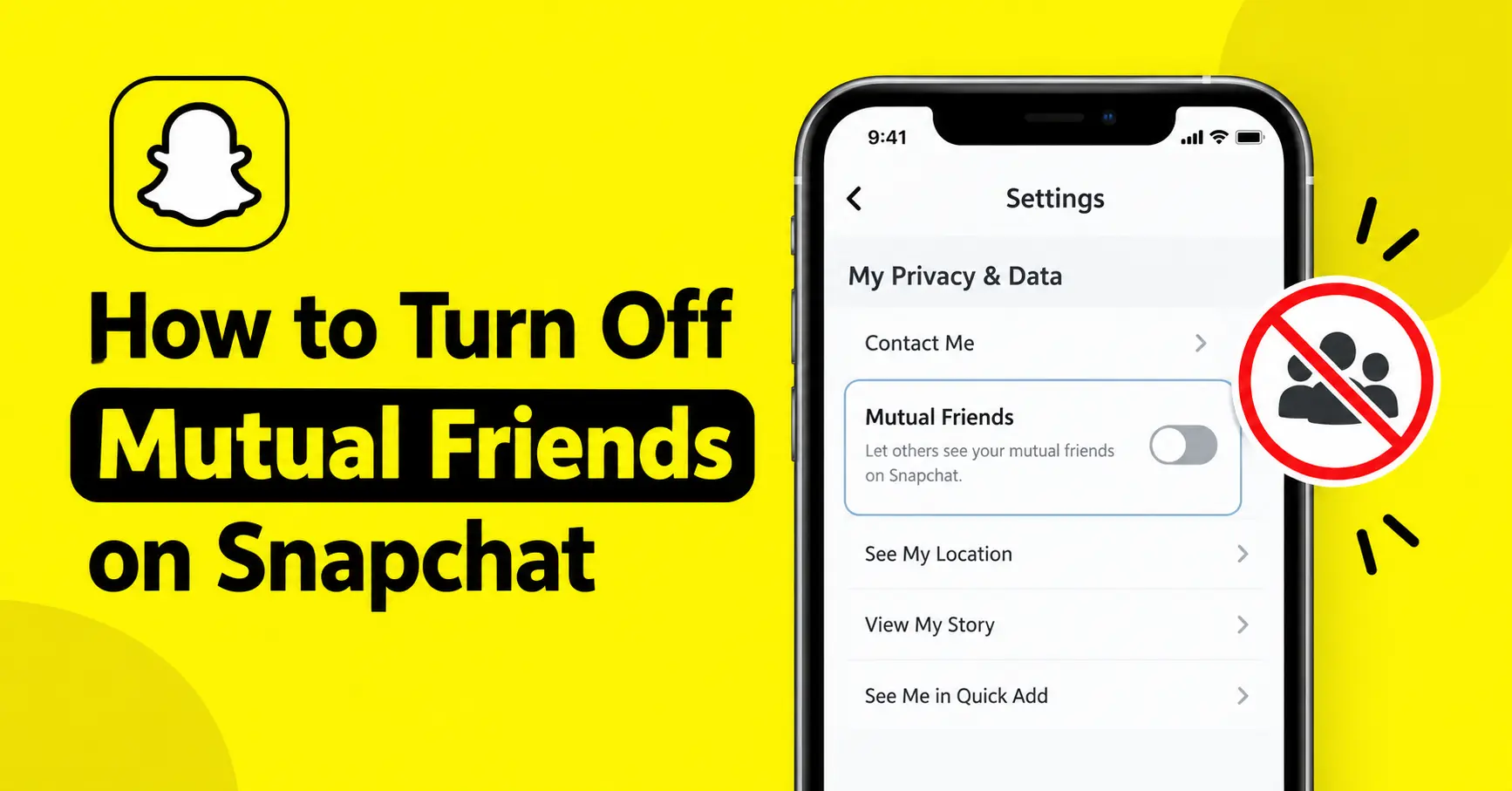
How to Turn Off Mutual Friends on Snapchat (2026 Guide)
If you want to know how to turn off mutual friends on Snapchat, you can do it through your Snapchat privacy settings. Snapchat now has a dedicated Mutual Friends option that lets you control whether your mutual friends list is visible to others and whether you appear in their lists.
You do not need to remove your friends or block anyone to change this setting. Just open your profile settings, find the Mutual Friends option, and turn it off. You can also check the Snapchat planet order to understand how Snapchat ranks your closest friends.
How to Turn Off Mutual Friends on Snapchat
You can hide your mutual friends list on both iPhone and Android by following these steps.
Method 1: Turn Off Mutual Friends in Settings
- Open the Snapchat app on your phone.
- Tap your Bitmoji or profile picture in the top-left corner.
- Tap the gear icon to open Settings.
- Scroll down and select My Privacy & Data.
- Find Mutual Friends.
- Turn off the mutual friends setting.
Snapchat’s official help page confirms that you can disable mutual friends sharing through this menu. The exact wording or placement may vary depending on your app version and account.
Method 2: Use the Edit Option on Your Account
You may also be able to turn off the feature directly from your account page.
- Open Snapchat and go to your profile.
- Open My Account.
- Tap the edit icon.
- Find Show Mutual Friends List.
- Switch the toggle off.
This is another route described in Snapchat’s official instructions. If you cannot find this option, use the first method through My Privacy & Data instead.
You can also learn how to see mutual friends on Snapchat to understand how shared friends work and how Snapchat displays mutual connections between users.
What Happens When You Turn Off Mutual Friends?
Turning off mutual friends helps you control what other Snapchat users can see about your shared connections.
Here is what you should know:
- Your mutual friends list is hidden: Other users should no longer see your shared-friends list through this feature.
- You stop appearing in other users’ mutual friends lists: Disabling sharing also affects whether your account appears in other people’s lists.
- You do not need to remove friends: Your existing friendships remain in place.
- It does not block anyone: People may still find or contact you through other available Snapchat features, depending on your privacy settings.
Snapchat says that mutual friends are visible only when both users have enabled sharing. Individual friends may also remain hidden if they have disabled their own mutual friends settings.
Can You Turn Off Mutual Friends Without Removing Friends?
Yes. You can disable mutual friends sharing without unfriending anyone.
For example, imagine you and a coworker have five mutual friends on Snapchat. You want to keep your friend connections private, but you still want to chat with your coworker and send Snaps.
In this situation, turning off mutual friends sharing is a better choice than removing or blocking the person. Your friendships remain unchanged, while you control the visibility of your shared connections.
What If You Cannot Find the Mutual Friends Setting?
If the Mutual Friends option is missing from your Snapchat settings, try these solutions.
1. Update Snapchat
Open the App Store on your iPhone or Google Play Store on your Android phone. Check whether an update is available and install it.
2. Check My Privacy & Data
Open your profile, tap Settings, and look under My Privacy & Data. Snapchat lists mutual friends controls in this section.
3. Restart the App
Close Snapchat completely and reopen it. If the setting still does not appear, check again later because some features may not be available for every account or region.
4. Check Snapchat Support
If you have tried these steps and still cannot find the option, visit the official Snapchat Support website for further guidance.
How to Improve Your Privacy on Snapchat
Turning off mutual friends is one way to manage your privacy. You can also review other settings to decide how people find and interact with you.
Turn Off Find Friends Suggestions
If your goal is to stop appearing in friend suggestions, you can change your Find Friends settings.
- Open Snapchat and tap your profile picture.
- Tap the Settings icon.
- Open My Privacy & Data.
- Find the option related to Who Can See Me in Find Friends.
- Adjust the setting to stop your account from appearing in these suggestions, if the option is available.
Snapchat previously called this feature Quick Add. It is now called Find Friends. Turning off Find Friends suggestions is different from disabling mutual friends sharing.
Review Who Can Contact You
You can also control who can send you Snaps, Chats, and calls.
Go to Settings and look for Contact Me. Review the available choices and select the option that suits your privacy needs.
Control Your Story Privacy
If you do not want certain people to see your Stories, open your privacy settings and review who can view your Story. You may be able to use the Custom option to exclude specific friends.
Remember that hiding mutual friends does not automatically hide your Stories or location. These settings control different parts of your account.
Frequently Asked Questions
Can I hide mutual friends on Snapchat?
Yes. Go to Settings, open My Privacy & Data, find Mutual Friends, and turn off sharing. This controls whether your mutual friends list is shared through the feature.
Can someone see my mutual friends if I turn off the setting?
Your mutual friends list should no longer be shared through this feature when you disable it. Snapchat also requires both users to enable sharing before a mutual friends list can appear on a profile.
Does turning off mutual friends notify anyone?
Snapchat’s official instructions do not state that users receive a notification when you disable mutual friends sharing. However, the company does not explicitly guarantee that every related change is unnoticeable.
Does turning off mutual friends remove my friends?
No. Disabling mutual friends sharing does not remove people from your friends list. You can continue communicating with friends as before, subject to your other privacy settings.
Is turning off mutual friends the same as turning off Find Friends?
No. Mutual Friends controls the sharing of shared-friend information. Find Friends controls whether your account can appear in friend suggestions. You may want to adjust both settings if you want greater privacy.
Can I turn off mutual friends on an iPhone and Android?
Yes. Snapchat provides mutual friends privacy controls for supported accounts on both platforms. The exact menu names or layout may differ between app versions.
Conclusion
Learning how to turn off mutual friends on Snapchat is simple once you know where to look. Open your profile, go to Settings, select My Privacy & Data, and turn off the Mutual Friends option.
You do not need to remove or block your friends to manage this setting. If you want more privacy, consider reviewing Find Friends suggestions, contact permissions, and Story visibility too.