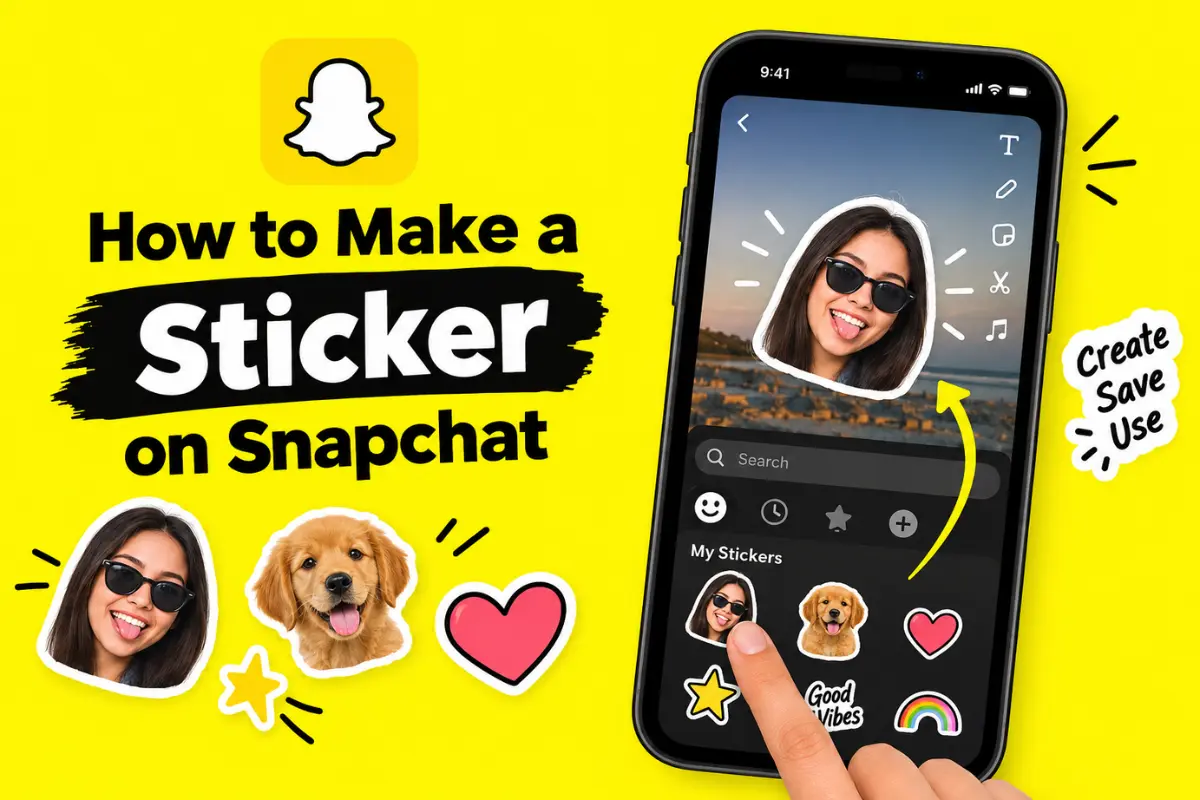
How to Make a Sticker on Snapchat?
Snapchat is known for making photos and videos more fun with filters, Bitmoji, emojis, drawings, and stickers. One of the most useful features is the ability to make your own sticker on Snapchat from a photo or part of a Snap.
Custom stickers are useful when you want to turn your face, pet, favorite object, or another part of a photo into something you can reuse in future Snaps and Chats. Snapchat also lets you create stickers from photos saved on your device. Depending on your Snapchat features and subscription, you can even create animated stickers from short videos.
In this guide, you will learn how to make a sticker on Snapchat, how to use it, and how to create animated stickers.
What Is a Custom Sticker on Snapchat?
A custom Snapchat sticker is an image or part of an image that you cut out and save as a sticker. Instead of using only Snapchat’s built-in stickers, you can create one from your own photos.
For example, you could cut out:
- Your face
- A friend
- Your pet
- A favorite object
- A funny expression
- A product or item
- Part of a photo
Snapchat saves stickers you create so you can use them again later.
How to Make a Sticker on Snapchat From a Photo
The easiest way to create a custom sticker is through Snapchat’s sticker drawer.
Step 1: Open a Chat
Open the Snapchat app and go to a conversation with a friend or group.
You do not necessarily have to send anything. The Chat screen gives you access to the sticker drawer where you can create a new sticker.
Step 2: Open the Sticker Drawer
Tap the sticker icon in the Chat.
This opens Snapchat’s available stickers and other sticker options.
Step 3: Tap “New Sticker”
Look for the New Sticker option and tap it.
Snapchat will let you choose a photo that you want to turn into a custom sticker.
Step 4: Choose a Photo
Select a photo from your available images.
Choose a clear picture where the person or object you want to use as a sticker is easy to identify. A photo with good lighting can make the final sticker look cleaner.
Step 5: Save Your Sticker
After selecting the photo, follow Snapchat’s on-screen editing options and tap Save Sticker.
Your custom sticker will then be available in your sticker drawer.
According to Snapchat Support, custom stickers created with the sticker tool are saved in your sticker collection for later use.
How to Make a Sticker From a Snap
You can also create a sticker directly from a photo Snap.
This method is especially useful when you have just taken a picture and want to turn something in that picture into a sticker.
Follow These Steps
- Open Snapchat and take a photo Snap.
- On the Preview screen, tap the Scissors icon.
- Use your finger to outline the person or object you want to turn into a sticker.
- Lift your finger when you have finished outlining it.
- Snapchat will turn the selected area into a sticker.
- Save it if you want to use it again later.
The Scissors tool is designed to let you select part of an image and turn it into a custom sticker.
How to Add Your Custom Sticker to a Snap
Once you have created a sticker, you can use it on your Snaps.
Take a photo or video Snap and open the sticker drawer from the Preview screen. Find your custom sticker and tap it to add it to your Snap.
You can then:
- Move the sticker around the screen
- Make it larger or smaller
- Rotate it
- Place it over another object
- Add multiple stickers
Snapchat also allows you to pin a sticker to an object in a Snap. When pinned, the sticker can move, rotate, and change size with that object.
How to Send a Custom Sticker in Snapchat Chat
Custom stickers are not limited to Snaps. You can also send stickers directly in Chat.
Open a conversation, tap the sticker or smiley-face option, and open the sticker drawer. Find your custom sticker and tap it to send.
This can be a fun way to react to messages without typing a long response. Snapchat also lets users favorite stickers so they can find commonly used ones more easily.
How to Make an Animated Sticker on Snapchat
Snapchat also supports animated stickers made from short videos, although this feature has additional requirements.
To create an animated sticker, open the sticker drawer and tap New Sticker. Choose a video from Memories or your Camera Roll.
You can select up to 5 seconds of video for the animated sticker. Snapchat provides trimming and cropping tools so you can choose the part of the video you want to use.
You may also be able to isolate a moving part of the video and remove the background. After editing, tap the checkmark and save the finished sticker.
Snapchat currently lists animated video stickers as a Snapchat+ feature. If you do not have Snapchat+, selecting a video for this feature may take you to the Snapchat+ information page.
How to Make a Sticker From Spotlight
Snapchat also provides an option to create a sticker from Spotlight content.
Open a video in Spotlight and pause it. If the Create Sticker option is available, tap the Scissors icon and outline the part of the video you want to turn into a sticker.
After selecting the area, save the sticker to your sticker drawer.
This gives you another way to create custom stickers without starting with a regular photo Snap.
Tips for Making Better Snapchat Stickers
A few simple tips can make your custom stickers look much better.
Use Clear Photos
Choose images with good lighting and a clear subject. Blurry or dark photos can be harder to cut out accurately.
Keep the Outline Simple
When using the Scissors tool, try to follow the edges of the object carefully. You do not need to create an extremely detailed outline.
Use Stickers Creatively
You can combine your custom sticker with text, GIFs, emojis, Bitmoji, filters, and other Snapchat features.
For more Snapchat tips and explanations, you can also explore Snapchat Planets to learn more about Snapchat’s Friend Solar System and other features.
Try Different Photos
If the first sticker does not look right, try another photo with a simpler background. A strong contrast between the subject and background can make the selection easier.
Can You Delete a Sticker From a Snap?
Yes. If you add a sticker to a Snap and decide you do not want it, press and hold the sticker and drag it toward the trash.
Snapchat currently does not provide a way to delete every sticker from a Snap at once, so individual stickers need to be removed separately.
Final Thoughts
Making a sticker on Snapchat is a simple way to personalize your Snaps and Chats. You can create a sticker from a photo through the New Sticker option, or take a Snap and use the Scissors tool to cut out a person or object.
If you use Snapchat+, you can also create animated stickers from short videos. Once your sticker is saved, you can reuse it in Snaps and send it to friends through Chat.
Whether you want to turn your pet into a sticker, save a funny reaction, or create something unique for your conversations, Snapchat’s custom sticker tools give you an easy way to make your content more personal.