How to Turn Off Quick Reply on Snapchat?
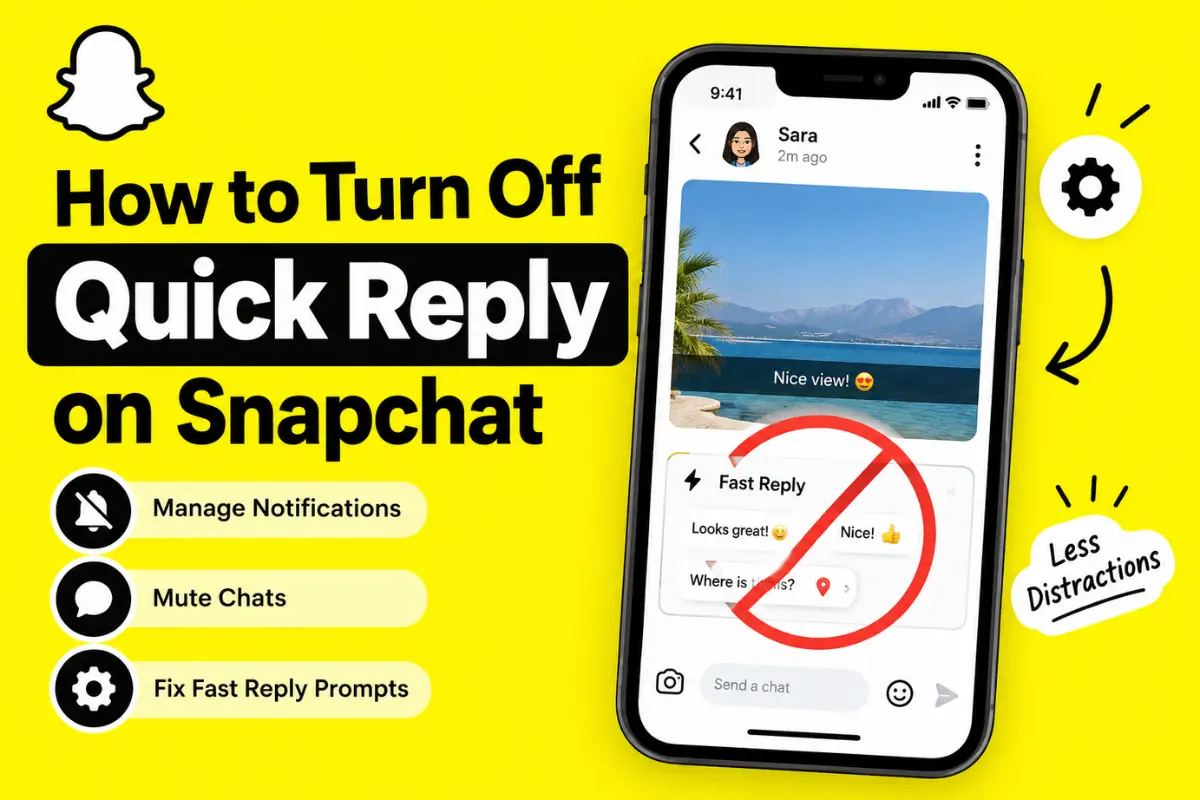
Snapchat is designed around quick conversations, so the app often puts reply options directly in front of you. For some users, this can be useful. For others, the Quick Reply or Fast Reply prompt that appears after viewing a Snap can feel distracting.
If you are looking for a way to turn off quick reply on Snapchat, there is an important point to understand first: Snapchat does not currently provide a clearly documented switch that completely disables the Fast Reply prompt for everyone.
However, there are several things you can check if you want fewer reply prompts or notifications.
What Is Quick Reply on Snapchat?
Quick Reply generally refers to Snapchat’s fast ways of responding to messages or Snaps without going through several extra steps.
Snapchat has different reply features. For example, Chat Reply allows you to respond directly to a specific message in a one-to-one or group conversation. You can press and hold a message and select Chat Reply, or swipe right on a message to reply to it.
Snapchat also has Snap Reply, which lets you add a Chat message to a Snap as a quoted element.
These features are different from the Fast Reply prompt that some users see after watching a Snap.
Can You Completely Turn Off Quick Reply?
At the moment, there is no official Snapchat setting clearly labeled Turn Off Quick Reply or Disable Fast Reply.
This is important because many online guides suggest going to Snapchat Settings and switching off a Quick Reply option. That option may not exist in the current version of the app.
Snapchat’s available settings can also change between app versions, devices, and account types. So if you cannot find a setting mentioned in an older guide, it does not necessarily mean something is wrong with your account.
How to Reduce Snapchat Reply Notifications
If your main problem is receiving too many message or reply notifications, you can control notification settings instead.
Step 1: Open Your Snapchat Profile
Open Snapchat and tap your profile or Bitmoji icon at the top of the screen.
Step 2: Open Settings
Tap the gear icon to open Snapchat Settings.
Step 3: Open Notifications
Look for the Notifications section.
Snapchat allows you to control different types of notifications. You can turn off notification categories that you do not want to receive.
Keep in mind that this controls notifications. It does not necessarily remove an in-app Fast Reply prompt that appears while using Snapchat.
How to Mute One Person’s Chat
If the quick replies are mainly bothering you because of one particular conversation, you can mute that person’s Chat notifications.
Open the Chat screen and press and hold the friend’s name.
Then select Chat and Notification Settings and open Notification Settings.
From there, you can turn on Mute Chats or Mute Calls, depending on what you want to stop.
This can be useful when you still want to keep the conversation but do not want constant alerts from it.
What If Fast Reply Appears After Watching a Snap?
Some users have reported seeing a Fast Reply window after watching someone’s Snap. This appears to be different from Snapchat’s standard Chat Reply feature.
If you are seeing this prompt and want to remove it, there may not currently be a dedicated setting to disable it.
You can try a few basic troubleshooting steps.
Update Snapchat
First, check the App Store or Google Play Store for an available Snapchat update.
A feature that appears unexpectedly can sometimes be connected to a recent app change, test, or interface update.
Restart Snapchat
Completely close Snapchat and open it again.
If the prompt appeared because of a temporary app problem, restarting the app may help.
Clear Snapchat Cache
Snapchat includes a cache-clearing option that can help with some temporary app issues.
Open Snapchat Settings and look for the cache option under the appropriate settings section.
Clearing the cache does not normally mean deleting your saved Memories or account information.
Check Again After Updating
After clearing the cache and updating Snapchat, watch a few Snaps again and see whether the Fast Reply prompt continues appearing.
If it remains, the feature may simply be part of the current Snapchat interface or an account-level test.
Quick Reply vs. Chat Reply
It is easy to confuse these features because their names sound similar.
Quick or Fast Reply: A quick response prompt or interface element that may appear while interacting with Snaps.
Chat Reply: A feature that lets you reply directly to a specific message in a conversation.
Snap Reply: A feature that lets you respond to a Snap with a Chat message.
These features do not all have the same settings.
If you are trying to turn off one of them, first identify exactly what appears on your screen.
Does Turning Off Notifications Remove Quick Reply?
Not necessarily.
Turning off Snapchat notifications can stop certain alerts from appearing on your phone, but it does not automatically disable every reply-related feature inside the Snapchat app.
For example, you may stop receiving a particular notification while still seeing reply options when you open Snapchat.
This is why changing notification settings may not solve the problem for users who are specifically trying to remove the Fast Reply box.
Why Can’t I Find the Quick Reply Setting?
Snapchat regularly changes its interface and tests features with different groups of users.
As a result, two Snapchat accounts can sometimes have slightly different options.
A feature can also be introduced gradually rather than appearing for everyone at the same time.
This means an older tutorial may show a Quick Reply setting that you cannot find in the current version of Snapchat.
If Snapchat adds a dedicated switch in a future update, its location may also change.
Latest Snapchat Reply Updates
Snapchat continues to expand its messaging tools.
Its current Chat Reply feature lets users respond to a specific message by pressing and holding it and choosing Chat Reply. Snapchat also supports replying by swiping right on a message.
Snap Reply is another separate feature that lets users respond to a Snap inside Chat.
These tools are designed to make conversations faster and easier, which explains why Snapchat continues to place reply actions prominently in the app.
However, a dedicated option to completely disable every quick or fast reply prompt is not currently documented by Snapchat.
What Should You Do If You Don’t Want Quick Replies?
If your goal is simply to reduce distractions, the best approach depends on what you are seeing.
If you are receiving too many phone notifications, change your Snapchat notification settings.
If one person is sending too many alerts, mute their Chat or call notifications.
If you are seeing the Fast Reply prompt inside Snapchat after watching Snaps, check for an app update, restart the app, and clear the cache.
If none of these steps changes the behavior, the feature may not currently be removable from your account.
How to Report the Problem to Snapchat
If you believe Fast Reply is appearing because of a bug or you want Snapchat to provide an option to disable it, you can report the issue through Snapchat’s support options.
When reporting the problem, explain exactly when the prompt appears.
For example, mention whether it appears after watching a friend’s Snap, opening a Story, or entering a Chat. A screenshot can also make the problem easier to understand.
Final Thoughts
If you searched for how to turn off Quick Reply on Snapchat, the most important thing to know is that there is currently no clearly documented switch that completely disables the Fast Reply prompt for all users.
You can still control many related features through Snapchat’s notification and Chat settings.
If the prompt appeared recently, updating Snapchat and clearing its cache are reasonable first steps. If it continues appearing, it may be part of Snapchat’s current interface or a feature being tested on your account.
Because Snapchat frequently changes its messaging features, the available settings may change in future updates. It is worth checking Snapchat’s Settings and official support information when a new option becomes available.