How to Unpin Someone on Snapchat?
Snapchat is designed to keep your closest friends front and center. One of its most useful features is the ability to “pin” conversations so they stay at the top of your chat list. But what if your priorities change? Maybe you don’t talk to that person as much anymore, or you just want a cleaner chat screen.
That’s where unpinning comes in.
In this detailed guide, you’ll learn exactly how to unpin someone on Snapchat, along with tips, troubleshooting advice, and answers to common questions.
What Does “Pinning” Mean on Snapchat?
Before learning how to unpin someone, it’s important to understand what pinning actually does.
When you pin a conversation on Snapchat:
- That chat stays at the top of your chat list
- It remains there even if you receive new messages from others
- It’s marked with a 📌 pin icon
This feature is especially helpful for:
- Best friends
- Important conversations
- Quick access chats
However, Snapchat only allows a limited number of pinned chats (usually up to 3).
Why You Might Want to Unpin Someone
There are several reasons you might want to remove a pinned chat:
1. Changing Priorities
You may no longer talk to that person frequently.
2. Chat List Clutter
Too many pinned chats can make your screen messy.
3. New Close Friends
You may want to pin someone else instead.
4. Privacy Reasons
Pinned chats are visible at the top, which might not always be ideal.
How to Unpin Someone on Snapchat (Step-by-Step)
If you’re wondering how to unpin on Snapchat, unpinning someone is quick and simple. Follow these steps:
Step 1: Open Snapchat
Launch the Snapchat app on your phone.
Step 2: Go to the Chat Screen
Swipe right from the camera screen or tap the chat icon at the bottom.
Step 3: Find the Pinned Chat
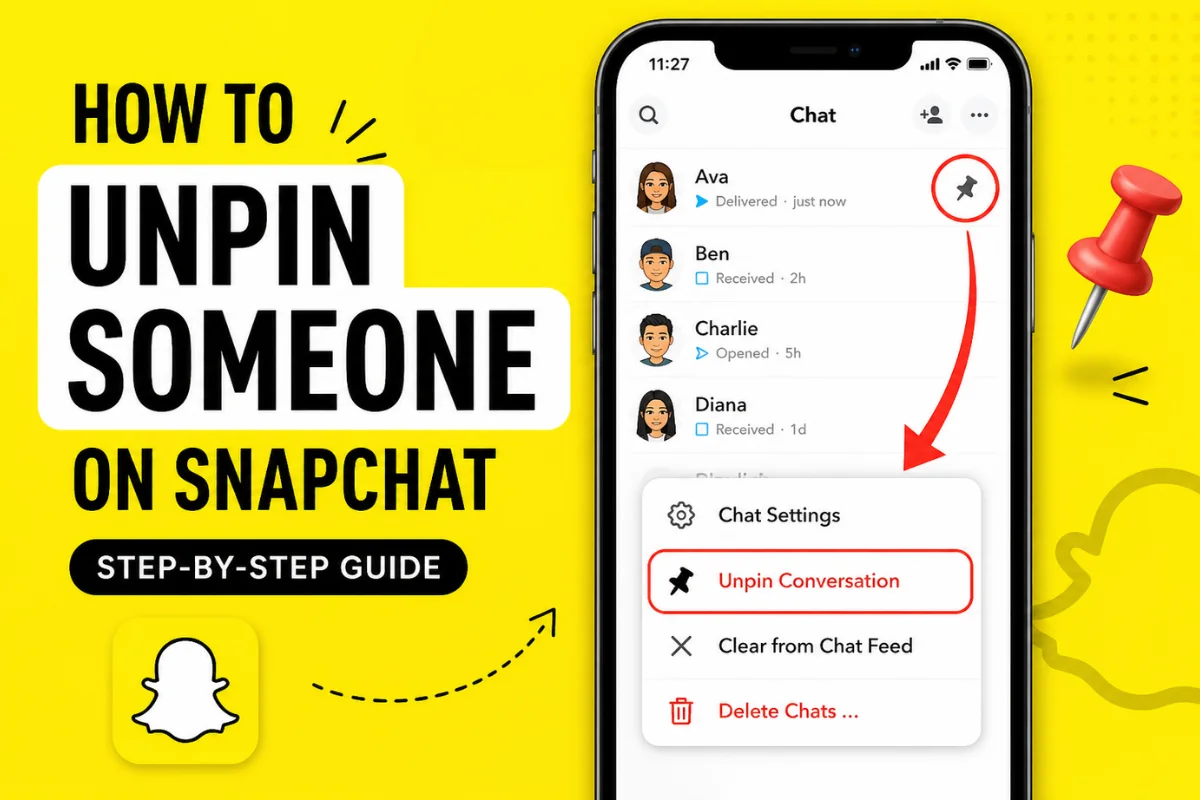
Look for the conversation with the 📌 pin icon.
Step 4: Press and Hold the Chat
Tap and hold the conversation you want to unpin.
Step 5: Tap “Chat Settings”
A menu will appear. Select Chat Settings.
Step 6: Tap “Unpin Conversation”
Once you tap this, the chat will instantly move back to its normal position.
That’s it. The chat is now unpinned.
Alternative Method (If Available)
In some versions of Snapchat, you may see the option directly:
- Tap and hold the pinned chat
- Select Unpin Conversation (without going into Chat Settings)
This depends on your app version and device.
What Happens After You Unpin Someone?
Once you unpin a conversation:
- The chat moves back into the regular chat list
- Its position depends on recent activity
- The 📌 icon disappears
- You can pin someone else if needed
Importantly:
- The other person is NOT notified
- Your messages and chat history remain unchanged
Can the Other Person See If You Unpin Them?
No, Snapchat does not notify users when:
- You pin them
- You unpin them
This action is completely private.
How to Pin Someone Again (If Needed)
If you change your mind later, you can always pin them again.
Steps:
- Go to your chat list
- Tap and hold the conversation
- Select Chat Settings
- Tap Pin Conversation
The chat will return to the top.
Common Issues and Fixes
Sometimes users face issues while trying to unpin someone. Here are common problems and solutions:
1. “Unpin Option Not Showing”
Fix:
- Update Snapchat from the app store
- Restart the app
- Try long-pressing again
2. App Glitch or Lag
Fix:
- Close and reopen the app
- Clear cache (Android users)
- Restart your phone
3. Feature Not Available
Some older versions may not support pinning/unpinning properly.
Fix:
- Make sure your app is updated to the latest version
Tips for Managing Your Snapchat Chat List
To keep your chats organized:
✔ Keep Only Important Chats Pinned
Avoid pinning too many conversations.
✔ Regularly Review Pinned Chats
Unpin chats you no longer need at the top.
✔ Use Chat Settings
Mute, clear, or customize chats for better control.
✔ Prioritize Active Conversations
Pin people you interact with daily.
Difference Between Pinning and Best Friends
Many users confuse pinned chats with Snapchat’s Best Friends feature.
Here’s the difference:
| Feature | Pinning | Best Friends |
| Manual Control | Yes | No (algorithm-based) |
| Visibility | Only you can see | Visible in emoji indicators |
| Purpose | Quick access | Interaction tracking |
Privacy Considerations
Pinning and unpinning are private actions, but still:
- Anyone using your phone can see pinned chats
- Be mindful if privacy is a concern
- Use app lock or phone lock for added security
FAQs
1. How many chats can I pin?
Snapchat usually allows up to 3 pinned chats.
2. Does unpinning delete messages?
No, it only changes the chat position.
3. Can I unpin all chats at once?
No, you must unpin each chat individually.
4. Is the feature available on both Android and iPhone?
Yes, but the interface may look slightly different.
5. Can I pin someone again after unpinning?
Yes, anytime you want.
When Should You Unpin Someone?
Here are some practical scenarios:
- You stopped talking regularly
- You want to pin someone more important
- Your chat list feels overcrowded
- You’re reorganizing your app
Pro Tip: Keep Your Chat List Clean
A clean chat list improves your Snapchat experience. Instead of keeping old pinned chats:
- Unpin inactive conversations
- Focus on current interactions
- Keep your top chats meaningful
Final Thoughts
Unpinning someone on Snapchat is a simple but powerful way to organize your chat list. Whether you’re updating your priorities or just cleaning up your screen, the process takes only a few seconds.
The best part? It’s completely private, so you can manage your chats without worrying about notifications or awkward situations.
If you regularly use Snapchat, learning small features like this can make a big difference in how smooth and organized your experience feels.