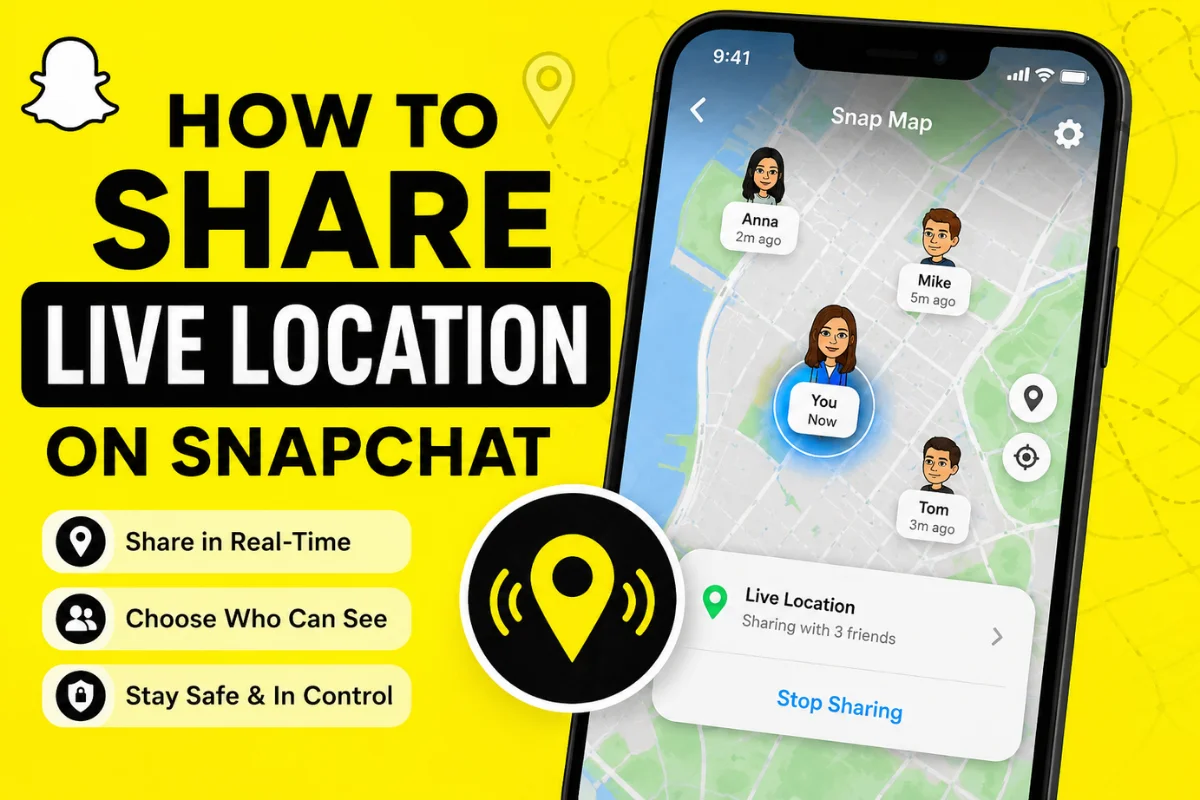
How to Share Live Location on Snapchat?
Sharing your location on Snapchat can be useful when you are meeting friends, traveling, heading home, or simply want someone you trust to know where you are. Snapchat offers location-sharing features through Snap Map, with controls that let you decide who can see your location.
Snapchat has also expanded its location tools with features such as live location sharing, Family Center location visibility, and arrival notifications. The exact options you see can depend on your app version, device permissions, and account settings.
What Is Live Location on Snapchat?
Live location sharing allows selected people to see your current position as it updates. Unlike simply sending a location pin, Snapchat location can help keep another person updated as you move, making it easier to stay connected while traveling or meeting friends.
Snapchat’s current Snap Map privacy system lets you choose specific friends or groups of friends who can see your location. You can also hide your location completely with Ghost Mode.
This can be helpful if you are walking home, traveling to a meeting point, or trying to help a friend find you.
How to Share Live Location on Snapchat
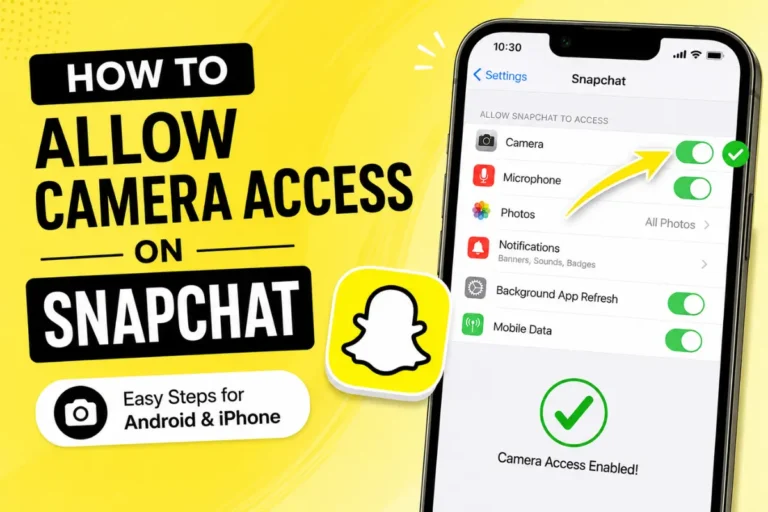
Before sharing your location, make sure Snapchat has permission to access your device’s location.
Then follow these steps:
1. Open Snapchat
Launch the Snapchat app on your iPhone or Android phone and make sure you are signed into your account.
2. Open Snap Map
From the Snapchat camera screen, open Snap Map. You can usually access it through the Map icon in the app.
Snap Map is where Snapchat manages location sharing and lets you see locations shared by friends.
3. Open Map Settings
Tap the gear icon on the Map screen to open your location settings.
Snapchat’s current settings include several sharing choices, including My Friends, My Friends, Except…, and Only These Friends….
4. Choose Who Can See Your Location
If you want to share your location with everyone you have added back as a friend, choose My Friends.
For more privacy, choose Only These Friends… and select the people you trust.
You can also use My Friends, Except… if you want most friends to see your location but want to exclude certain people.
5. Check Your Location Permission
Your phone’s location permission affects how Snapchat can update your position.
If Snapchat is allowed to use your location only while the app is being used, the location shown on Snap Map may stop updating when you close Snapchat. Snapchat says locations using the “Only while using” permission expire from the Map after 24 hours.
For continuous background sharing with trusted people, Snapchat also supports an Always or background location option where available. This allows selected people to continue seeing your real-time location even after you close Snapchat.
Can You Share Your Location With Just One Friend?
Yes. Snapchat lets you choose individual friends through the Only These Friends… option.
Open Snap Map, tap the gear icon, choose Only These Friends…, and select the friend or friends you want to share your location with.
Snapchat says friends you select aren’t notified simply because you added them to your location-sharing list.
This is often the better choice if you only want one person to know where you are.
How to Share a Location Pin Instead
There is an important difference between live location sharing and sending a location pin.
If you only need to tell someone where a place is, you can drop a pin on Snap Map.
Press and hold a location on the Map to create a pin. Then tap Send and choose the friend you want to share it with.
For example, you could drop a pin at a restaurant and send it to your friend. They will know the meeting location without needing your ongoing location.
How to Stop Sharing Your Live Location
You can stop sharing your location whenever you want.
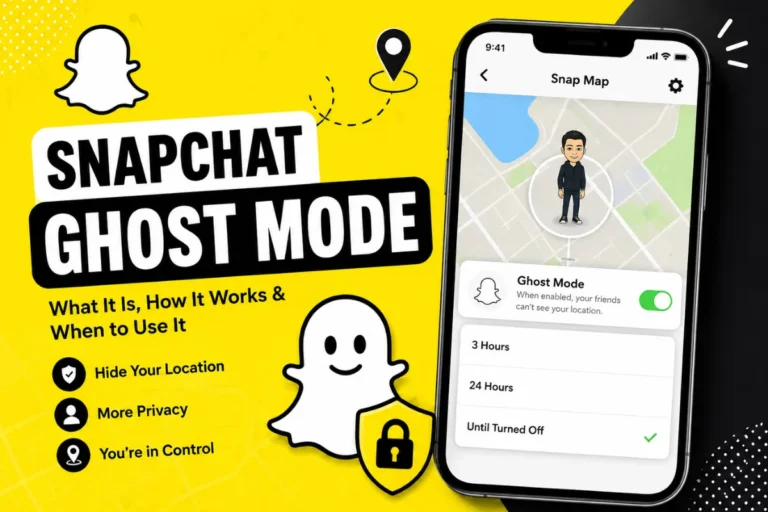
Open Snap Map, tap the gear icon, and turn on Ghost Mode. Snapchat says Ghost Mode hides your location from other Snapchatters on the Map.
You can also use Ghost Mode with a timer. Current Snapchat options include 3 hours, 24 hours, or Until Turned Off.
If you want to stop background location sharing specifically, you can also change Snapchat’s location permission in your phone’s settings.
Does Snapchat Share Your Location With Everyone?
No. Location sharing is off by default, and you choose who can see your location.
Snapchat currently allows you to share with all your friends, exclude specific friends, or select specific friends. Ghost Mode can hide your location from everyone else on the Map.
However, remember that posting a Snap to Snap Map is different from your private location-sharing settings. Snapchat warns that Snaps submitted to Snap Map may still appear on the Map regardless of your location-sharing choice.
Latest Snapchat Location Updates
Snapchat’s location features have continued to become more useful beyond basic Snap Map sharing.
One newer option is Family Center Live Location Sharing. Parents can send a request to their teen asking them to share their live location. Once the teen accepts, the parent can see the live location in the app, and the parent can share their own location back.
Snapchat has also introduced Home Arrival Notifications. These can automatically notify a friend when you arrive home. You can choose a one-time notification or have it sent every time, depending on the available settings.
Another recent Snap Map development is Place Loyalty, introduced in April 2026. Snapchat announced that users may see a “Top Visitor” badge associated with places they frequently visit, adding another social layer to Snap Map.
These updates show that Snapchat is making Snap Map more than just a way to check where friends are. It is becoming a broader tool for location-based communication and safety.
Is Sharing Live Location on Snapchat Safe?
Location information can be sensitive, so it is important to share it carefully.
Only share your location with people you genuinely trust. If you are traveling or going somewhere unfamiliar, consider sharing your location temporarily rather than leaving background location enabled indefinitely.
Snapchat itself recommends reviewing your location settings and limiting background location sharing to trusted friends and family.
If you no longer need someone to see your location, remove them from your sharing list or enable Ghost Mode.
Final Thoughts
Learning how to share live location on Snapchat is fairly simple once you know where Snap Map’s privacy settings are located. You can share your location with all your friends, selected friends, or keep it hidden with Ghost Mode.
For everyday situations, the Only These Friends… option is a good choice when you want more control. And if you only need to tell someone where to meet, sending a location pin may be better than sharing your live location.
Because Snapchat continues to update its location and safety tools, it is worth checking your Snap Map settings from time to time to make sure your location is being shared exactly the way you want.