How to Unblock Someone on Snapchat
Snapchat is one of the most popular social media platforms in the world, used by millions of people every day to share photos, videos, and messages. However, sometimes we block someone—either by mistake or due to a temporary disagreement. Later, you might want to reconnect and wonder how to unblock them.
If you’re searching for a clear, easy-to-follow guide on how to unblock someone on Snapchat, you’re in the right place. This detailed article will walk you through everything you need to know, including step-by-step instructions, images, and important tips.
Why You Might Want to Unblock Someone on Snapchat
Before jumping into the steps, let’s understand why people unblock others on Snapchat:
- You blocked someone accidentally
- You had a misunderstanding that is now resolved
- You want to reconnect with an old friend
- You need to contact someone for personal or professional reasons
Blocking is not permanent, and Snapchat allows you to reverse it anytime.
What Happens When You Block Someone on Snapchat?
When you block someone on Snapchat:
- They are removed from your friends list
- They cannot send you snaps or messages
- They cannot view your stories
- You disappear from their search results
Once you unblock them, things don’t automatically return to normal—you’ll need to add them again as a friend.
Important Things to Know Before Unblocking
Before you unblock someone, keep these points in mind:
- You must send them a friend request again
- Previous chats will not be restored
- They won’t be notified when you unblock them
- If they blocked you back, you won’t be able to add them
Step-by-Step Guide to Unblock Someone on Snapchat
Follow these simple steps carefully.
Step 1: Open Snapchat App
Launch the Snapchat app on your smartphone. Make sure you are logged into your account.
Step 2: Tap on Your Profile Icon
- Look at the top-left corner
- Tap on your Bitmoji or profile icon
This will open your profile page.
Step 3: Open Settings
- Tap on the ⚙️ (Settings icon)
- It’s located in the top-right corner
Step 4: Scroll Down to “Blocked Users”
- Scroll down until you find “Blocked”
- Tap on it to see the list of users you’ve blocked
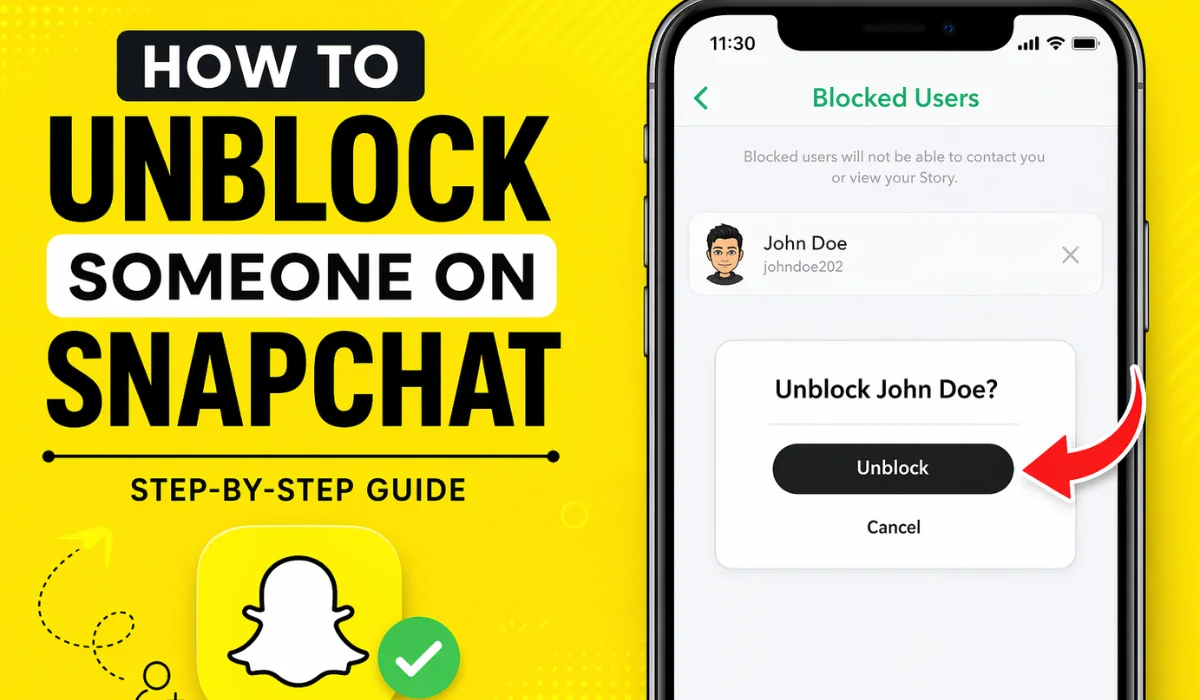
Step 5: Unblock the User
- Find the person you want to unblock
- Tap the ❌ (X icon) next to their name
- Confirm when prompted
That’s it! The person is now unblocked.
What to Do After Unblocking Someone
Unblocking doesn’t automatically restore your connection. Here’s what you should do next:
1. Add Them Back as a Friend
Search for their username and send a friend request.
2. Wait for Acceptance
They need to accept your request before you can chat again.
3. Start a Conversation
Once accepted, you can send snaps and messages again.
Can You Find Someone After Unblocking?
Yes, but only if:
- You remember their username
- They haven’t blocked you
- Their privacy settings allow you to find them
If you can’t find them, try searching via mutual friends.
What Happens to Chats After Unblocking?
Unfortunately:
- Old messages are deleted
- Chat history cannot be recovered
- You start fresh
This is Snapchat’s privacy feature.
Why You Might Not Be Able to Unblock Someone
Sometimes, users face issues while unblocking. Here are common reasons:
1. The User Deleted Their Account
If their account no longer exists, you won’t see them in your blocked list.
2. App Glitches
Temporary bugs can cause problems. Try restarting the app.
3. Poor Internet Connection
Make sure you have a stable connection.
4. Snapchat Server Issues
Rare, but possible during outages.
Tips for Managing Your Snapchat Contacts
To avoid unnecessary blocking/unblocking:
- Think before blocking someone
- Use “Do Not Disturb” instead
- Adjust privacy settings
- Mute notifications instead of blocking
Alternative Options Instead of Blocking
If you don’t want to fully block someone, consider these options:
1. Mute Notifications
You won’t receive alerts from them.
2. Remove Friend
They won’t see your private stories.
3. Change Privacy Settings
Control who can contact you.
How to Block Someone Again (If Needed)
If things don’t go well, you can block them again:
- Open their profile
- Tap the three dots (⋮)
- Select “Block”
- Confirm
Frequently Asked Questions (FAQs)
Will the person know I unblocked them?
No, Snapchat does not send any notification.
Can I unblock someone immediately?
Yes, there is no waiting period.
Do I need to add them again?
Yes, unblocking does not restore friendship.
Can I unblock someone who blocked me?
No, you cannot interact unless they unblock you first.
Final Thoughts
Unblocking someone on Snapchat is a simple process that takes less than a minute. Whether it was a mistake or a change of heart, Snapchat gives you full control over your connections.
Just remember:
- You’ll need to add them again
- Chats won’t come back
- Communication restarts from scratch
By following this guide, you can easily manage your Snapchat connections without confusion.