What Are Snapchat Notifications?
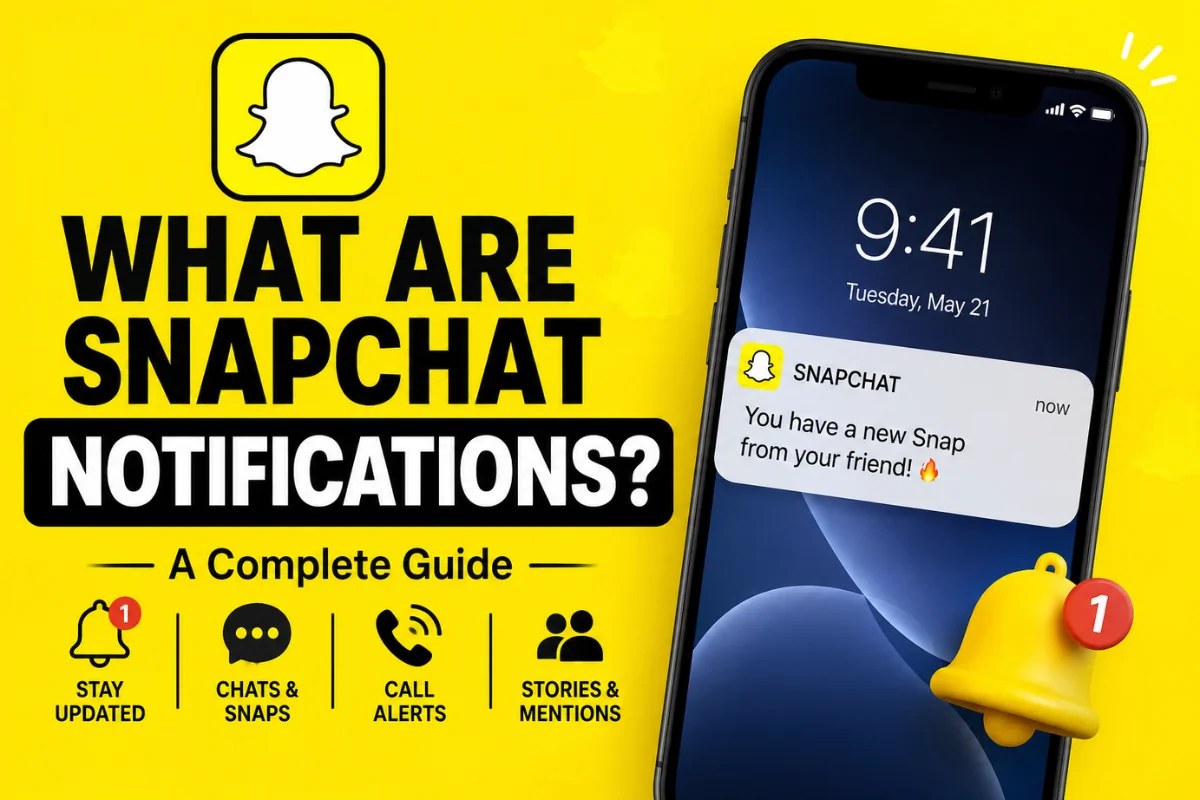
Snapchat notifications are alerts that let you know when something important happens on your account. They can appear as pop-ups, sounds, badges, or alerts inside the Snapchat app.
For example, Snapchat may notify you when someone sends you a Snap, Chat, or call. You can also receive alerts about Stories, mentions, friend activity, and other account-related events.
Snapchat has continued to improve how notifications work. Its newer Notification Center brings activity related to you into one place, making it easier to find important updates without relying only on phone pop-ups.
What Do Snapchat Notifications Mean?
A Snapchat notification simply tells you that there is new activity that may need your attention.
Depending on your settings, you might receive notifications when:
- Someone sends you a Snap
- Someone sends you a Chat
- A friend calls you
- Someone posts a Story
- Someone mentions you
- There is activity related to your Public Profile
- You receive certain Snapchat account or creator updates
Not every Snapchat user receives exactly the same notifications. Your settings, device, account type, and the specific activity can affect which alerts you see.
What Is the Snapchat Notification Center?
One of the newer changes to Snapchat is the Notification Center.
The Notification Center brings Snapchat activity related to you into one place. You can access it from the Stories, Camera, or Chat tabs by tapping the bell icon. If you receive too many updates, including Spotlight alerts, you may want to learn how to turn off Spotlight notifications on Snapchat. Snapchat provides notification settings that let you manage the types of alerts you receive, helping you keep only the notifications that matter to you.
This is useful if you miss a phone notification. Instead of searching through individual conversations or profiles, you can check the Notification Center for activity connected to your account.
The exact appearance and available categories can change as Snapchat updates the app.
Common Types of Snapchat Notifications
1. Chat Notifications
When someone sends you a Chat, Snapchat can send a notification to your phone.
This makes it easier to know when a friend has messaged you without opening Snapchat repeatedly.
You can also mute Chat notifications from individual people. Snapchat currently lets users open a conversation’s notification settings and turn on Mute Chats or Mute Calls.
2. Snap Notifications
You may receive an alert when a friend sends you a Snap.
These notifications are useful for keeping up with direct messages, especially when you are waiting for a response or maintaining a Snapstreak.
Your phone’s notification settings can also affect whether these alerts appear.
3. Story Notifications
Snapchat allows you to receive notifications when selected friends post Stories.
To manage these alerts, Snapchat currently provides Manage Story Notifications in the notification settings. You can choose the Snapchatters whose Stories you want to be notified about.
You can also manage Story notifications from a friend’s Chat by opening Story Settings and switching Story Notifications on or off.
4. Mention Notifications
If someone mentions you in a Public Story, Snapchat can show that activity in the Mentions section of Notifications on your Public Profile.
For eligible accounts, you can also choose whether to receive mentions from followers.
This can be particularly useful for creators and people who regularly interact with public audiences.
5. Call Notifications
Snapchat also provides notifications for incoming calls.
If calls from a particular person become distracting, you can mute their call notifications without necessarily blocking or removing them.
This gives you more control over how you use Snapchat while keeping the conversation available.
Can You Turn Off Snapchat Notifications?
Yes. Snapchat lets you control many notification types.
On iPhone, open your Snapchat profile, tap the Settings gear, select Notifications, and use the available switches to turn notification types on or off.
On Android, Snapchat provides notification controls through the app’s Settings. You can uncheck the notifications you do not want to receive. Depending on your phone, you may also need to allow Snapchat notifications through your device settings first.
Your phone’s operating system can override or restrict app notifications, so checking both Snapchat and device settings is sometimes necessary.
How to Mute Snapchat Notifications From Someone
You do not always have to turn off all Snapchat notifications.
If one person or group sends too many alerts, you can mute them instead.
Open the Chat screen, press and hold the person’s name, and go to Chat and Notification Settings. From there, you can mute Chats or Calls.
Muting is different from blocking. The person can still send you Snaps or Chats, but you will not receive the corresponding push notification.
Snapchat also allows you to mute Group Chat notifications. Depending on the current options shown in the app, you can choose settings such as all messages, mentions only, or silent notifications.
Snapchat+ Notification Features
Snapchat+ subscribers can get additional notification customization options.
For example, Snapchat currently offers Custom Notification Sounds, allowing Snapchat+ users to select a custom sound for notifications from a particular friend or Group.
This can make it easier to recognize who is contacting you without looking at your phone immediately.
Available Snapchat+ features can change over time, so the options you see may depend on your app version and account.
What If Snapchat Notifications Are Not Working?
Sometimes notifications stop appearing even though they are enabled inside Snapchat.
First, check Snapchat’s notification settings. Then check your phone’s notification permissions.
If you use Snapchat for Web, browser permissions can also affect notifications. Snapchat recommends checking notification permissions for browsers such as Chrome, Edge, and Safari when incoming Chat or Call alerts are not appearing.
It is also worth updating Snapchat to the latest version. Older versions can sometimes cause notification-related problems or display different settings.
Snapchat Notifications on Snapchat for Web
Snapchat notifications are not limited to the mobile app.
Snapchat for Web can also provide notifications for incoming Chats and Calls. However, browser permissions must allow notifications for Snapchat.
If notifications are disabled in your browser, Snapchat may not be able to show alerts even when your account settings are correct.
Are Snapchat Notifications Private?
Notifications can display information on your phone’s lock screen, depending on your device settings.
If you share your phone with someone or want more privacy, you can adjust how notification content appears on your lock screen. Both Android and iPhone provide controls for displaying notification details.
Remember that turning off notification previews does not necessarily turn off Snapchat notifications themselves. It can simply limit how much information is visible before you open your device.
Final Thoughts
Snapchat notifications are designed to keep you informed about activity that matters to you. They can alert you about Snaps, Chats, calls, Stories, mentions, and other account activity.
The newer Notification Center also gives Snapchat users a central place to review activity related to their account.
The best approach is not necessarily to turn everything off. Instead, customize your notification settings, mute individual conversations when needed, and keep important alerts enabled.
Because Snapchat regularly updates its interface and features, some notification names or locations may look different depending on your app version and device.