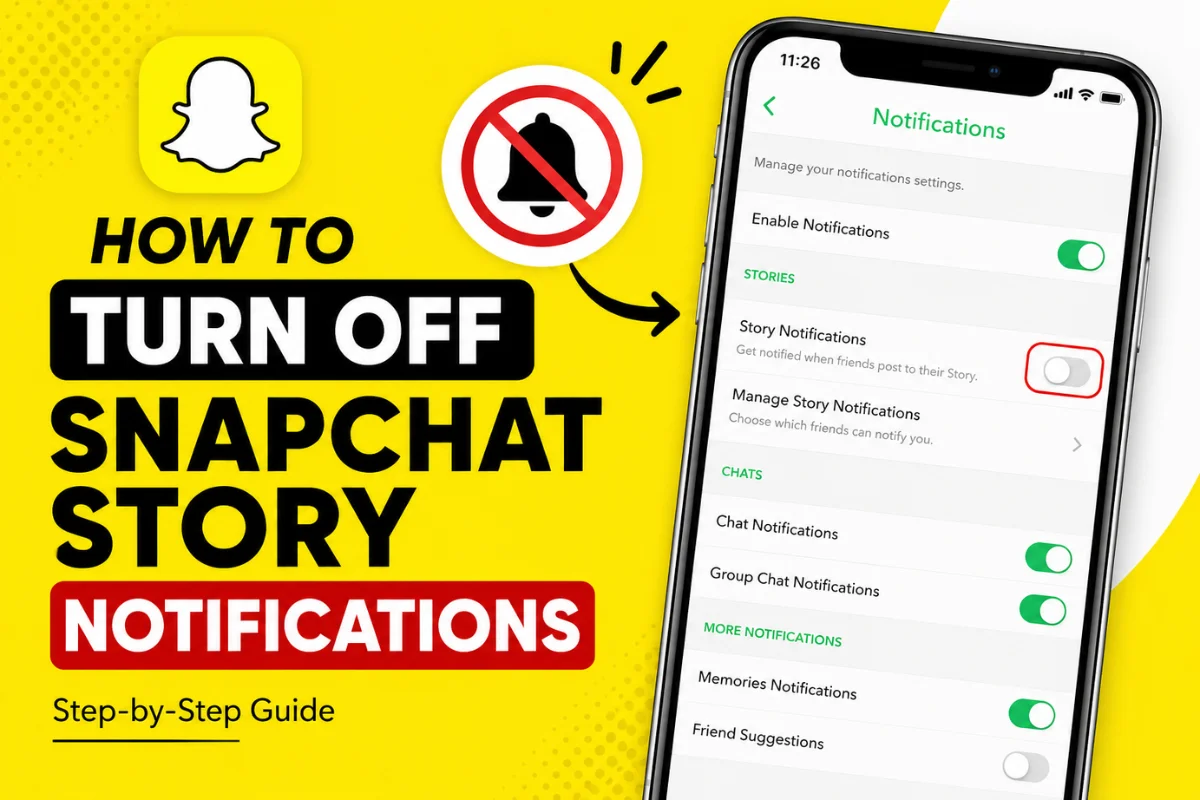
How to Turn Off Snapchat Story Notifications?
Snapchat can keep you updated when friends or accounts you follow post new Stories. While these alerts can be useful, they can also become annoying when you follow many people.
The good news is that Snapchat lets you manage Story notifications without turning off every notification from the app. You can disable Story alerts, manage notifications from specific people, or mute a friend’s Story completely.
The exact options can vary slightly depending on your Snapchat version and device. Here is how to manage them using the latest Snapchat settings.
What Are Snapchat Story Notifications?
Snapchat Story notifications are alerts that let you know when certain people you follow post a new Story.
For example, if you have Story notifications enabled for a friend, Snapchat may send you a notification when that person uploads a new Story.
These notifications are separate from regular Chat, Snap, call, and other Snapchat alerts. This means you do not necessarily need to turn off all Snapchat notifications just because you want fewer Story alerts.
How to Turn Off Snapchat Story Notifications
The easiest way to manage Story notifications is through Snapchat’s notification settings.
On supported versions of the app, Snapchat provides a Manage Story Notifications option for Stories you follow.
Follow these steps:
- Open the Snapchat app.
- Tap your Profile icon.
- Tap the Settings gear in the top-right corner.
- Select Notifications.
- Look for Manage Story Notifications.
- Review the people whose Stories you receive notifications from.
- Remove or disable the Story notifications you no longer want.
- Tap Done if the option appears.
This lets you keep other Snapchat notifications while reducing unnecessary Story alerts.
How to Turn Off Story Notifications for One Person
If you only want to stop notifications from one friend, you do not need to change your entire notification setup.
Snapchat also provides Story settings from a friend’s Chat screen.
To manage a friend’s Story:
- Swipe right from the Camera screen to open Chat.
- Press and hold the friend’s name.
- Tap Story Settings.
- Adjust the available Story notification settings.
Snapchat’s current support information also shows that Story notifications can be controlled from these friend-specific settings.
This is useful if one person’s frequent Story updates are filling your notification panel but you still want alerts from everyone else.
How to Mute Someone’s Snapchat Story
Another option is to mute a person’s Story.
Muting is slightly different from simply changing notification settings. When you mute a friend’s Story, Snapchat stops automatically placing that Story near the top of your Stories feed.
To mute a Story:
- Open the Chat screen.
- Press and hold the friend’s name.
- Tap Story Settings.
- Turn on Mute Story.
According to Snapchat, muted Stories can still be viewed manually. The person also does not receive a notification that you muted them.
This makes muting a useful option when you want less content from someone without unfriending or blocking them.
How to Turn Off All Snapchat Notifications
If you want a complete break from Snapchat alerts, you can disable notifications for the entire app.
On iPhone, Snapchat currently provides notification controls under Profile > Settings > Notifications. You can turn off individual notification types or disable the ones you do not want.
On Android, Snapchat’s current instructions are also straightforward:
- Open your Snapchat profile.
- Tap the Settings gear.
- Tap Notifications.
- Uncheck the notification types you want to stop.
Snapchat notes that your device’s notification permissions may also affect whether you can manage notifications inside the app.
However, turning off all Snapchat notifications is usually unnecessary if your only problem is Story alerts.
Snapchat Story Notifications vs. Story Views
It is important not to confuse Story notifications with Story views.
A Story notification tells you that someone has posted a Story or relates to a notification preference you have enabled. A Story view, on the other hand, happens when you actually watch someone’s Story.
Changing your Story notification settings does not stop you from viewing Stories. It simply changes the alerts you receive.
You can still open Snapchat and check Stories whenever you want.
What About Snapchat+ Story Notifications?
Snapchat+ has another feature called Story View Notifications.
This feature works differently from regular notifications about friends posting Stories. Snapchat+ subscribers can choose specific friends and receive a notification the first time those friends view a Story they posted.
If you are trying to stop these alerts, check your Snapchat+ membership settings and review Story View Notifications.
This distinction is important because turning off regular Story notifications and managing Snapchat+ Story View Notifications are not necessarily the same thing.
What If You Still Receive Story Notifications?
If Story notifications continue after you change the settings, first check whether notifications are enabled at the phone level.
On iPhone and Android, Snapchat needs permission to send notifications. Snapchat specifically notes that device notification settings can affect Story notification controls.
You can also try these simple fixes:
- Close and reopen Snapchat.
- Check that you changed the correct Story notification setting.
- Update Snapchat to the latest available version.
- Restart your phone.
- Check your phone’s notification permissions for Snapchat.
- Review individual friends’ Story Settings.
Keep in mind that Snapchat frequently updates its interface, so menu names or their locations may look slightly different in your version of the app.
Can You Turn Off Story Notifications Without Unfriending Someone?
Yes.
You do not need to unfriend, block, or remove someone simply because you do not want their Story notifications.
Snapchat’s notification and mute controls are designed to let you customize what you see and what alerts you receive. Muting a friend does not prevent them from sending you Snaps or Chats, and they are not notified when you mute their Story.
This makes notification controls a better choice when you want to keep the friendship but reduce distractions.
Final Thoughts
Turning off Snapchat Story notifications is simple once you know where the settings are.
If you want to stop alerts from specific people, use Manage Story Notifications or the person’s Story Settings. If you also want their Story to appear less prominently in your feed, use Mute Story.
For a complete notification break, you can turn off Snapchat notifications from the app or your phone’s notification settings.
The best option depends on how much control you want. Instead of disabling everything, adjusting individual Story notifications can help keep Snapchat quieter while allowing important messages and other alerts to come through.