How to Block Someone on Snapchat?
Sometimes, you may want to stop someone from contacting you on Snapchat. Maybe they are sending unwanted messages, repeatedly viewing your public content, or making you feel uncomfortable. Whatever the reason, Snapchat gives you the option to block accounts and control who can interact with you.
When you block someone, they can no longer contact you directly through that account or view your private Snapchat content as a friend. Blocking is different from removing a friend because it also restricts communication.
In this guide, you will learn how to block someone on Snapchat, what happens after blocking, how to unblock someone, and what other privacy options you can use.
How to Block Someone on Snapchat
The easiest way to block someone is through your Chat screen. You do not need to open their profile separately if you can already see their conversation.
Follow these steps:
Step 1: Open Snapchat
Open the Snapchat app on your iPhone or Android phone and sign in to your account.
Make sure you are using the latest version of the app so the menus and settings match the current interface as closely as possible.
Step 2: Open the Chat Screen
Swipe right from the camera screen to open your Chat screen. Find the person you want to block in your conversation list.
If you have several conversations, scroll until you find the correct username.
Step 3: Open Their Profile
Press and hold the person’s name to open the available options. Depending on your app version, you may also tap their Bitmoji or profile picture to access their profile.
Check the username carefully before continuing, especially if multiple people have similar display names.
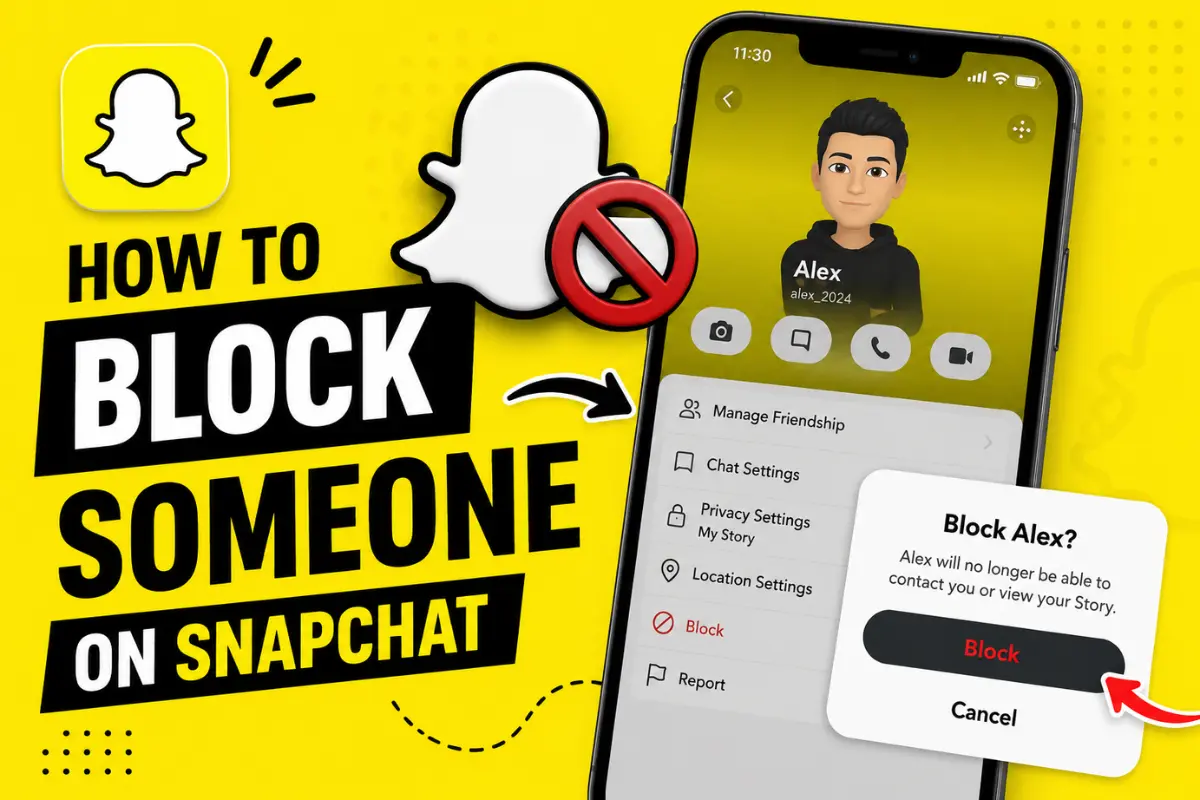
Step 4: Tap Manage Friendship
On the person’s profile, look for the three-dot menu in the upper corner. Tap it to open the friendship options.
Select Manage Friendship if that option appears.
Step 5: Select Block
Tap Block and confirm your choice if Snapchat asks you to confirm.
Once the block takes effect, that account will no longer be able to contact you normally through Snapchat. You can repeat these steps whenever you need to block another account.
How to Block Someone on Snapchat Who Is Not Your Friend
You can also block someone who is not on your friends list. This is useful if a stranger sends unwanted messages or tries to contact you.
Here is what to do:
- Open Snapchat and find the person’s chat, if available.
- Tap their profile or press and hold their name.
- Open the three-dot menu.
- Select Manage Friendship, if shown.
- Tap Block and confirm.
If you cannot find the person in your chats, search for their username using Snapchat’s search feature. Open the correct profile and check whether the block option is available.
Blocking an unfamiliar account can help prevent further unwanted contact. If the person is harassing, threatening, or impersonating someone, consider reporting the account as well.
What Happens When You Block Someone on Snapchat?
Before blocking someone, it helps to understand what changes after you confirm your decision.
1. They Cannot Send You Snaps or Chats
The blocked account cannot send you Snaps or private Chats through Snapchat. This can help stop unwanted messages and repeated contact.
2. They Cannot See Your Private Stories
Blocking someone prevents them from viewing your Stories and Charms through your friendship with them. However, they may still be able to view content you post publicly, such as Public Stories or Spotlight content.
3. Your Location Is Hidden From Them
If you were sharing your location through Snap Map, blocking the person hides your location from that account.
For additional privacy, review your Snap Map settings and check who can see your location.
4. Snapchat Does Not Send Them a Notification
Snapchat does not send a direct notification telling someone that you have blocked them. However, they might figure it out if they can no longer find your profile or contact you.
5. Your Previous Chats May Be Affected
After blocking someone, your one-on-one conversation may disappear from your Chat feed. Some saved messages or previous chat history may also become unavailable, so do not assume that unblocking the person will restore everything.
How to Unblock Someone on Snapchat
If you block someone by mistake or decide to reconnect later, you can unblock them through your settings.
Follow these steps:
- Open Snapchat and tap your profile icon.
- Tap the gear icon to open Settings.
- Scroll down to the Blocked section.
- Find the person’s name.
- Tap the X beside their name to unblock them.
The person will no longer be blocked, so they may be able to send you Snaps and Chats again, depending on your privacy settings. You might need to add them as a friend again if you want to restore your friendship.
What Is the Difference Between Blocking and Removing a Friend?
Blocking and removing a friend are two different options. Choosing the right one depends on how much distance you want from that person.
| Feature | Block Someone | Remove a Friend |
| Send private Snaps or Chats | Blocked | Depends on privacy settings |
| View private friend content | Restricted | Depends on privacy settings |
| Find or contact your account | More restricted | May still be possible |
| Reverse the action | Unblock them | Add them again if available |
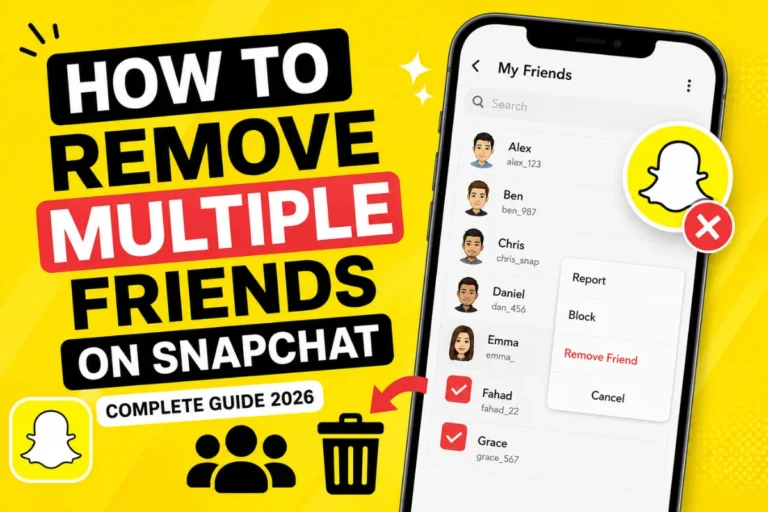
If you simply want to remove someone from your friends list, removing them may be enough. If you want to prevent direct contact, blocking is usually the better option.
How to Block Someone Without Them Knowing
Snapchat does not send a notification when you block an account. This means you can use the feature without Snapchat directly announcing your decision to the other person.
However, there is no guarantee that they will never notice. They may realize something has changed when they cannot send you messages or access your profile in the usual way.
If you want to avoid blocking someone, you can adjust your privacy settings instead.
Open your profile, go to Settings, and select Contact Me. Depending on your account, you can restrict contact to friends or friends and phone contacts. Snapchat no longer offers the Everyone contact option for most accounts, although some Creator and business accounts may have different options.
Can You Block Someone on Snapchat Without Opening Their Chat?
Yes, if the person’s name appears in your Chat list, you can usually block them without opening the conversation.
Press and hold their name, tap Manage Friendship, and select Block.
If the person has a Public Profile, you can also visit that profile, tap the three-dot menu, and select Block.
The available options may vary slightly depending on your app version and the type of account.
Latest Snapchat Privacy Updates and Tips
Snapchat continues to refine its privacy and contact controls. One important change is that most regular accounts can no longer allow everyone to contact them directly. You can review the Contact Me setting to control whether friends or friends and phone contacts can send you Snaps, Chats, and Calls.
Snapchat also continues to provide tools for reporting abusive accounts, managing location visibility, and controlling who can view your Stories. These settings work alongside blocking, so you do not always need to block someone to improve your privacy.
If someone is harassing you, impersonating another person, or sending threatening messages, consider reporting the account before or while blocking it. Blocking stops direct contact, while reporting alerts Snapchat to a potential violation of its rules.
Because Snapchat can change its menus over time, check the current in-app settings if a button appears in a different place.
Final Thoughts
Learning how to block someone on Snapchat is simple. Open your Chat screen, press and hold the person’s name, select Manage Friendship, and tap Block.
Blocking helps you stop unwanted direct messages and protect your privacy. If you only want to limit contact, changing your privacy settings or removing the person from your friends list may be enough.
Choose the option that makes you feel comfortable, and remember that you can unblock someone later if you change your mind.