How to Turn Off Spotlight Notifications on Snapchat (iPhone & Android)
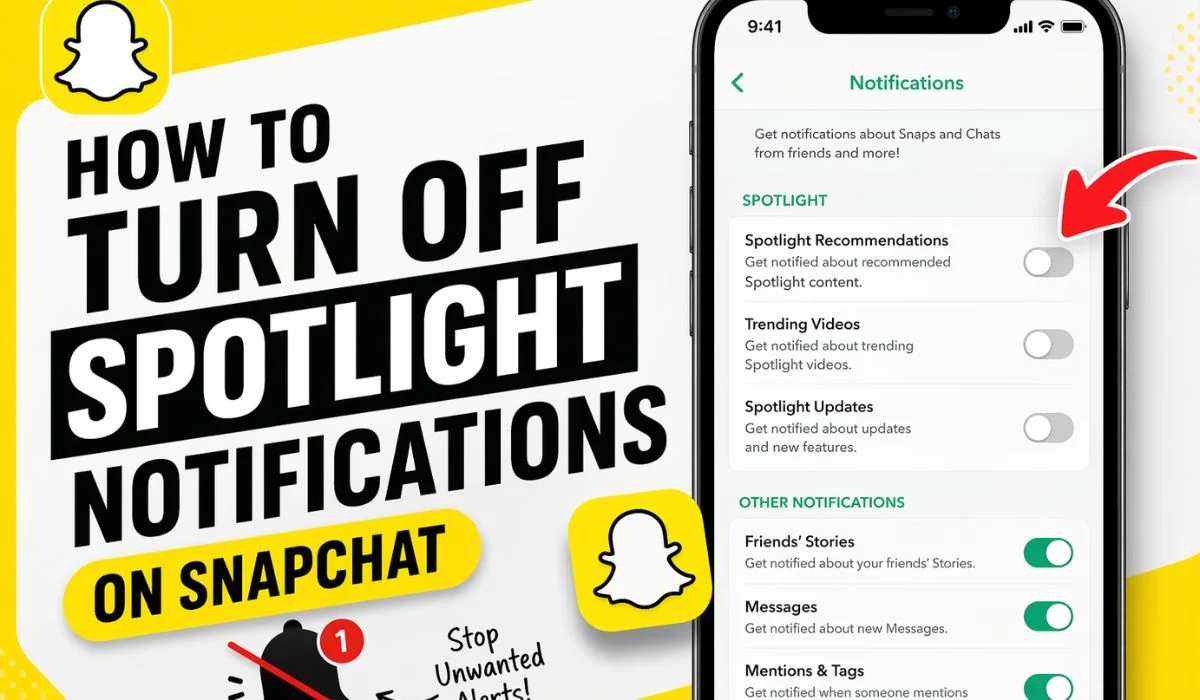
To turn off Spotlight notifications on Snapchat: Open Snapchat → tap your profile icon → tap the ⚙️ gear icon → tap Notifications → scroll down and toggle off “Post to Spotlight and Snap Map.” To stop Spotlight comment alerts, also turn off “Comments” in the same menu.
While managing your Snapchat notifications, you may also want to explore other popular features within the app. For example, many users are curious about Snapchat Planets, a Snapchat+ feature that shows your closest friends in a solar system-style ranking. Understanding how Snap Planets works can help you make better sense of your interactions and friendships on Snapchat.
What Are Spotlight Notifications on Snapchat?
Before jumping into the solution, it’s important to understand what Spotlight notifications are.
Snapchat Spotlight is a feature where users can watch short, entertaining videos—similar to TikTok or Instagram Reels. When you enable notifications, Snapchat sends alerts about:
- New trending Spotlight videos
- Updates from creators
- Engagement on your Spotlight posts
- Recommendations based on your activity
While these snapchat notifications can be useful, they often become distracting, especially if you receive too many alerts throughout the day.
Why You Might Want to Turn Off Spotlight Notifications
There are several reasons why users prefer to disable Spotlight notifications:
1. Too Many Alerts
Constant notifications can interrupt your focus, especially during work or study time.
2. Irrelevant Content
Not all Spotlight suggestions match your interests, making notifications unnecessary.
3. Battery Drain
Frequent notifications can consume battery and background data.
4. Better Focus
Turning off notifications helps you stay productive without digital distractions.
If you want more control over your alerts, you can learn how to turn off Snapchat Story notifications and reduce unwanted story updates.
How to Turn Off Spotlight Notifications on Snapchat — Main Method
This works on both iPhone and Android. The steps are identical inside the Snapchat app.
Step 1: Open the Snapchat app on your phone.
Step 2: Tap your Bitmoji or profile picture in the top-left corner of the camera screen.
Step 3: Tap the ⚙️ gear icon in the top-right corner. This opens your Settings.
Step 4: Scroll down and tap “Notifications” — it’s under the “My Account” section.
Step 5: Scroll down through the notifications list until you see:
- “Post to Spotlight and Snap Map” → Toggle this OFF
- “Comments” → Toggle this OFF (stops alerts when people comment on your Spotlight videos)
Step 6: Done. No save button needed — Snapchat saves automatically.
Alternative Method: Turn Off Notifications from Phone Settings
If Snapchat still sends notifications, you can control them through your device settings.
For Android Users:
- Go to Settings
- Tap on Apps
- Select Snapchat
- Tap Notifications
- Turn off or customize alerts
For iPhone Users:
- Open Settings
- Scroll to Snapchat
- Tap Notifications
- Toggle off Allow Notifications or customize them
Customize Notifications Instead of Turning Them Off
If you don’t want to completely disable notifications, you can customize them.
Options You Can Control:
- Friends’ Stories
- Messages
- Mentions and Tags
- Spotlight only
This allows you to reduce noise without missing important updates.
How to Stop Spotlight Comment Notifications Specifically
This is a separate setting from the general Spotlight notifications, and a lot of guides miss it.
If you’ve posted videos to Snapchat Spotlight and people are commenting on them, you’ll get a separate stream of notifications just for those comments.
To turn these off specifically:
- Open Snapchat → tap your profile → tap ⚙️
- Tap Notifications
- Find “Comments” and toggle it OFF
This stops comment alerts from your Spotlight posts without affecting any other notifications. Your DMs, streaks, and friend activity alerts stay untouched.
Snapchat Keeps Sending Spotlight Notifications — How to Fix It
You followed all the steps. You toggled everything off. And Snapchat is STILL sending you Spotlight alerts.
Here’s why this happens and how to actually fix it:
Fix 1 — Update Snapchat An outdated app sometimes ignores in-app notification settings. Go to the App Store (iPhone) or Google Play Store (Android), search Snapchat, and tap Update if it’s available.
Fix 2 — Log Out and Log Back In This refreshes your account settings and forces Snapchat to re-sync your notification preferences.
Profile → ⚙️ → scroll to the bottom → Log Out → log back in.
Fix 3 — Clear Snapchat Cache (Android only) Settings → Apps → Snapchat → Storage → Clear Cache. This removes temporary data that can sometimes cause settings to misbehave.
Fix 4 — Check iPhone System Settings On iPhone, even if Snapchat’s in-app settings are off, the iOS system settings can still allow notifications. Go to iPhone Settings → Snapchat → Notifications → toggle off “Allow Notifications.”
Fix 5 — Reinstall Snapchat Last resort. Uninstall the app, reinstall it from the App Store or Play Store, log back in, and set your notification preferences again from scratch. This fixes persistent bugs that survive normal updates.
Can You Completely Remove Snapchat Spotlight?
You cannot remove the Spotlight tab from Snapchat’s interface. The tab (the play button icon at the bottom of the screen) is built into the app and there’s no setting to hide it.
What you CAN do:
- Turn off all Spotlight notifications (covered above) — so Snapchat stops alerting you about it
- Never post your own content to Spotlight — your snaps won’t appear there
- Set your account to private to reduce your overall Snapchat footprint
What you CANNOT do:
- Remove the Spotlight tab from the bottom navigation bar
- Block Spotlight content from appearing if you open that tab
- Opt out of Snapchat recommending your public content to Spotlight
If you never tap the Spotlight tab and have notifications turned off, it effectively disappears from your daily experience.
Customize Instead of Turning Everything Off
If you want Snapchat alerts but just fewer of them, you don’t have to go nuclear and turn everything off. Here’s a smarter approach:
Keep these ON:
- Messages and Chat
- Snaps from Friends
- Streaks (Friendship Profiles → Birthday Notifications)
Turn these OFF:
- Post to Spotlight and Snap Map
- Comments (unless you actively post to Spotlight)
- Trending Spotlight content
Set these to Silent on iPhone:
- Go to iPhone Settings → Snapchat → Notifications
- Turn off Sound and Badge App Icon — notifications still come in but don’t ping or light up your screen
This way you stay connected with actual friends without being bombarded by Spotlight content you don’t care about.
Benefits of Turning Off Spotlight Notifications
Disabling Spotlight alerts comes with several advantages:
1. Reduced Distractions
You won’t be interrupted by unnecessary alerts.
2. Better Battery Life
Fewer notifications mean less background activity.
3. Improved Focus
Ideal for students and professionals.
4. Cleaner Notification Panel
Only important messages will appear.
Tips to Manage Snapchat Notifications Better
Here are some expert tips:
1. Use “Do Not Disturb” Mode
Enable this during study or sleep time.
2. Schedule Notification Time
Check Snapchat at specific times instead of instantly.
3. Limit App Usage
Reduce time spent scrolling Spotlight videos.
4. Keep App Updated
New updates often improve notification control.
Snapchat Updates and Notification Changes (2026)
Snapchat frequently updates its features. In recent updates:
- Notification controls are more customizable
- Users can filter content preferences
- Improved privacy settings
This makes it easier than ever to control what alerts you receive.
The Difference Between Spotlight Notifications and Spotlight the Feature
Quick clarification because this confuses a lot of people:
| What It Is | Can You Turn It Off? | |
|---|---|---|
| Spotlight Notifications | Alerts sent to your phone about Spotlight content | ✅ Yes — steps above |
| Spotlight Tab | The video feed section in Snapchat’s navigation | ❌ No — it’s built in |
| Your content on Spotlight | Your snaps being featured on Spotlight | ✅ Yes — don’t submit them |
| Comment notifications | Alerts when people comment on your Spotlight videos | ✅ Yes — separate toggle |
FAQ — Snapchat Spotlight Notifications
Final Thoughts
Snapchat is a fun and engaging app, but too many notifications can ruin the experience. Thankfully, learning how to turn off Spotlight notifications on Snapchat is simple and takes just a few minutes.
By following the steps in this guide, you can:
- Reduce distractions
- Improve productivity
- Customize your app experience
Whether you choose to turn off all Spotlight notifications or just a few, the control is entirely in your hands.