How to Get Rid of AI on Snapchat
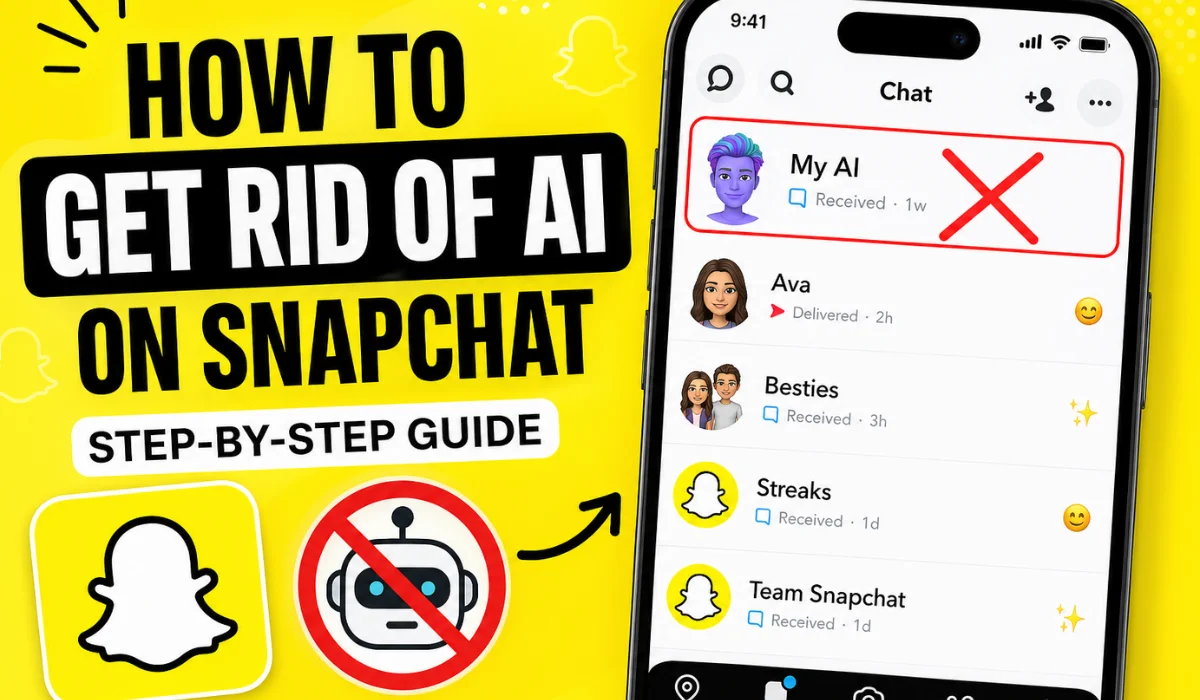
If you’ve opened Snapchat recently, you’ve probably noticed the built-in AI chatbot called My AI. For some users, it’s helpful. For others, it feels unnecessary, distracting, or even intrusive.
The truth is—you can’t always completely remove Snapchat AI, but you can hide it, unpin it, or limit how it interacts with you.
In this detailed guide, you’ll learn step-by-step methods to get rid of AI on Snapchat, along with practical tips to control your experience.
What Is Snapchat AI (My AI)?
Before removing it, it’s important to understand what you’re dealing with.
Snapchat’s My AI is a chatbot powered by artificial intelligence that sits in your chat feed. It can:
- Answer questions
- Suggest ideas
- Chat like a friend
- Provide recommendations
But many users find it:
- Always pinned at the top
- Hard to remove
- Not very useful
Can You Completely Remove Snapchat AI?
Here’s the honest answer:
- Free users: ❌ Cannot fully remove AI
- Snapchat+ users: ✅ Can unpin or remove it
So if you’re using the free version, your goal is to hide or minimize it, not delete it entirely.
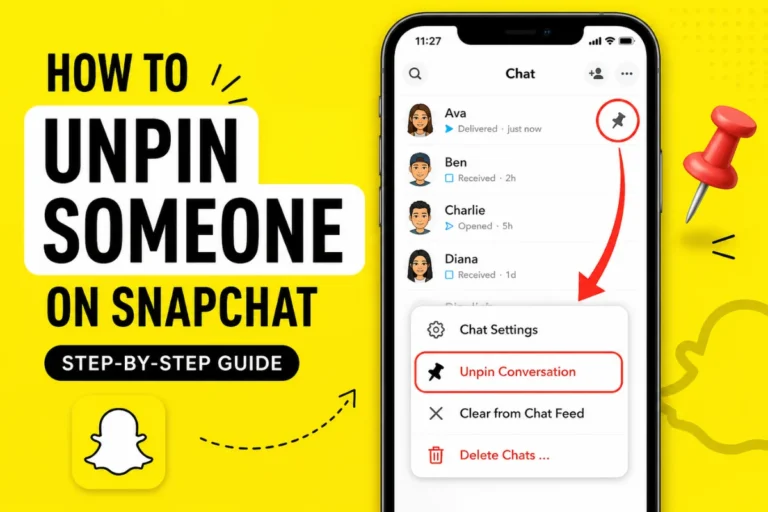
Method 1: Unpin My AI (Snapchat+ Users Only)
If you have Snapchat+, this is the easiest way to get rid of AI from your main screen.
Step-by-Step Guide
Steps:
- Open Snapchat
- Go to the Chat screen
- Press and hold on My AI
- Tap Chat Settings
- Select Unpin Conversation
👉 Done! My AI will no longer stay at the top.
Method 2: Clear My AI from Chat Feed
Even if you can’t remove it, you can clean your chat feed.
Steps:
- Open Snapchat
- Go to Chats
- Press and hold My AI
- Tap Chat Settings
- Select Clear from Chat Feed
⚠️ Note: It may reappear later, but this removes it temporarily.
Method 3: Disable My AI Data & Privacy Features
If your concern is privacy, you can limit how AI works.
Steps:
- Open Snapchat
- Tap your Bitmoji (Profile icon)
- Tap Settings (⚙️)
- Scroll to Privacy Controls
- Tap My AI
- Choose:
- Clear My AI Data
- Disable data sharing
Method 4: Remove AI from Search Suggestions
Sometimes My AI appears in search results.
Steps:
- Tap the Search icon
- Type anything
- Press and hold on My AI
- Select Hide or Remove Suggestion
Method 5: Block My AI (Limited Effect)
You might think blocking AI works—but here’s the reality:
- Snapchat does not fully allow blocking My AI
- You can only limit interaction
Still, try this workaround:
Steps:
- Open chat with My AI
- Tap profile icon
- Tap 3 dots (⋮)
- Choose Manage Chat
- Limit notifications or visibility
Method 6: Subscribe to Snapchat+ (Full Control Option)
If you want maximum control, Snapchat+ is the only real solution.
Benefits:
- Unpin My AI
- Customize chat experience
- Access exclusive features
Cost:
- Around $3.99/month (may vary by region)
👉 If AI really annoys you, this is the only permanent fix.
Why Snapchat Doesn’t Let You Remove AI
Let’s be real—this is intentional.
Snapchat introduced AI to:
- Increase engagement
- Compete with AI tools
- Keep users inside the app
So removing it completely isn’t in their business interest.
Common Problems & Fixes
1. My AI Keeps Coming Back
Fix: Clear chat + don’t interact with it
2. AI Is Always Pinned
Fix: Only Snapchat+ can unpin
3. Privacy Concerns
Fix: Clear data & avoid sharing personal info
4. AI Sends Messages First
Fix: Mute notifications or ignore chat
Pro Tips to Avoid Snapchat AI
Here are some practical tricks:
- Don’t open My AI chat
- Don’t reply or interact
- Clear it regularly
- Use Snapchat+ if needed
- Turn off notifications
👉 The less you interact, the less visible it becomes.
Is Snapchat AI Safe?
Generally, yes—but with caution.
Safe:
✔ Basic conversations
✔ General questions
Avoid:
❌ Sharing personal data
❌ Private information
❌ Location details
Alternatives: Use Snapchat Without AI Feel
If AI bothers you, try this:
- Focus only on Stories & Snaps
- Use Close Friends feature
- Avoid chat section
- Customize notifications
Final Thoughts
Getting rid of AI on Snapchat isn’t as simple as deleting a feature—but it’s definitely manageable.
Quick Summary:
- You can’t fully remove AI (free users)
- You can hide, clear, and limit it
- Snapchat+ gives full control
If you follow the methods above, you can make My AI practically invisible and enjoy a cleaner Snapchat experience.