How to Allow Camera Access on Snapchat?
Snapchat is built around the camera. Whether you want to send Snaps, create Stories, use filters, or record Spotlight videos, the app needs permission to access your device’s camera. If camera access is disabled, Snapchat cannot function properly and may display errors such as “Please allow camera access in Settings.”
Many users accidentally deny camera permissions during setup and later struggle to find the correct settings. The good news is that enabling camera access on Snapchat only takes a few minutes.
In this guide, you’ll learn how to allow camera access on Snapchat on Android and iPhone, why the permission is required, common issues that prevent camera access, and the latest troubleshooting solutions.
Why Snapchat Needs Camera Access
Snapchat is a camera-first social media platform. Almost every feature depends on camera permissions.
Camera access allows you to:
- Take photos and videos
- Send Snaps to friends
- Create Stories
- Use Snapchat lenses and filters
- Record Spotlight content
- Scan Snapcodes
- Use augmented reality (AR) features
- Make video calls
Without camera permission, most Snapchat features become unavailable.
Signs That Camera Access Is Disabled
You may need to enable camera access if you notice any of the following:
- A black screen when opening Snapchat
- “Enable Camera Access” error message
- Camera not loading
- Filters not working
- Unable to take photos or videos
- Snapchat crashing when opening the camera
These issues are often related to permission settings rather than hardware problems.
How to Allow Camera Access on Snapchat on iPhone
If you use an iPhone, follow these steps to enable camera access.
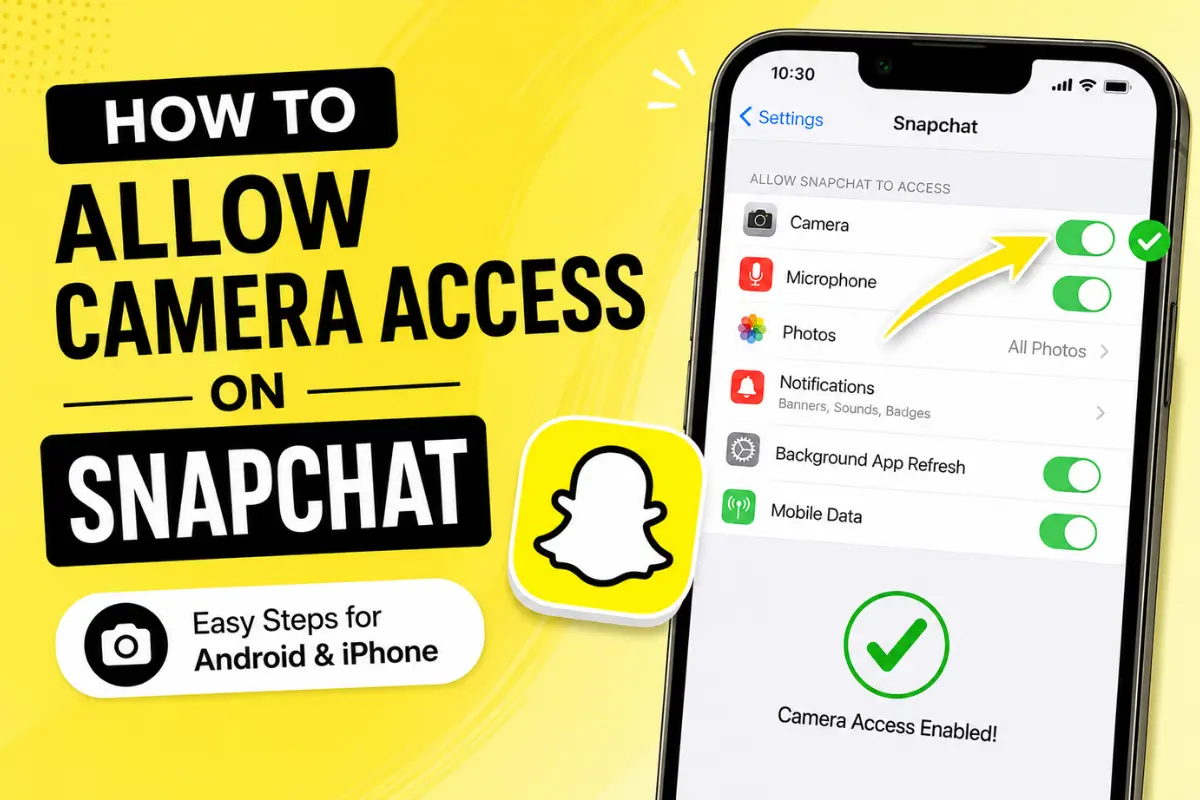
Method 1: Enable Camera Access Through Settings
- Open the Settings app.
- Scroll down and tap Snapchat.
- Find the Camera option.
- Toggle the switch ON.
Once enabled, reopen Snapchat and check if the camera is working.
Method 2: Check Privacy Settings
If the camera option is unavailable, verify privacy permissions.
- Open Settings.
- Tap Privacy & Security.
- Select Camera.
- Find Snapchat in the list.
- Turn on camera access.
After enabling permission, launch Snapchat again.
How to Allow Camera Access on Snapchat on Android
Android settings may vary slightly depending on your phone manufacturer, but the process remains similar.
Method 1: Through App Settings
- Open Settings.
- Tap Apps or Applications.
- Select Snapchat.
- Tap Permissions.
- Choose Camera.
- Select Allow.
Now reopen Snapchat and test the camera.
Method 2: Using Permission Manager
Modern Android devices include a Permission Manager.
- Open Settings.
- Tap Privacy.
- Select Permission Manager.
- Tap Camera.
- Find Snapchat.
- Choose Allow while using the app.
This method ensures Snapchat can access the camera whenever the app is active.
How to Enable Camera Access During Snapchat Setup
When installing Snapchat for the first time, the app requests several permissions.
These typically include:
- Camera
- Microphone
- Photos
- Location
- Notifications
To avoid future issues, select Allow when Snapchat asks for camera access. If you accidentally tap Don’t Allow, you can always enable it later using your device settings.
Snapchat Camera Access Error: How to Fix It
Sometimes camera permission is enabled, but Snapchat still displays an error.
Try these solutions.
Restart Snapchat
Close Snapchat completely.
Reopen the app and check whether the camera loads correctly.
Temporary glitches often disappear after a simple restart.
Restart Your Phone
Device-level software issues can interfere with app permissions.
Restart your phone and launch Snapchat again.
This refreshes system processes and can resolve camera-related problems.
Update Snapchat
Using an outdated version may cause compatibility issues.
Visit your device’s app store and install any available updates.
New Snapchat versions frequently include bug fixes and performance improvements.
Clear Snapchat Cache
On Android:
- Open Settings.
- Go to Apps.
- Select Snapchat.
- Tap Storage.
- Choose Clear Cache.
Within Snapchat:
- Open Snapchat.
- Tap your profile icon.
- Select Settings.
- Scroll down to Clear Cache.
- Confirm the action.
Cache corruption can sometimes prevent the camera from loading properly.
Reinstall Snapchat
If nothing else works, uninstall and reinstall the application.
Steps:
- Delete Snapchat.
- Restart your device.
- Download Snapchat again.
- Log in to your account.
- Grant camera permissions during setup.
This often resolves deeper software conflicts.
How to Allow Camera and Microphone Access Together
Many Snapchat features require both permissions.
Examples include:
- Recording videos
- Video calls
- Spotlight uploads
- Voice filters
- Audio-enabled Stories
On iPhone
- Open Settings.
- Tap Snapchat.
- Enable Camera.
- Enable Microphone.
On Android
- Open Settings.
- Go to Apps.
- Select Snapchat.
- Tap Permissions.
- Allow Camera.
- Allow Microphone.
Granting both permissions ensures all Snapchat features work correctly.
What If Snapchat Is Not Listed Under Camera Permissions?
Occasionally Snapchat may not appear in your permission list.
Try the following:
Update the App
An outdated installation may not request permissions correctly.
Reinstall Snapchat
A fresh installation forces Snapchat to request permissions again.
Check Screen Time Restrictions
On iPhone:
- Open Settings.
- Tap Screen Time.
- Select Content & Privacy Restrictions.
- Review camera-related restrictions.
If camera access is restricted, Snapchat cannot use the device camera.
How to Check If Another App Is Blocking the Camera
Some apps may temporarily occupy camera resources.
Examples include:
- Video conferencing apps
- Security camera applications
- QR scanner apps
- Third-party camera tools
Close all background apps before launching Snapchat.
This ensures Snapchat can access the camera without conflicts.
Snapchat Camera Features That Require Permission
Enabling camera access unlocks several popular Snapchat features.
Snapchat Lenses
AR lenses need real-time camera input to track your face and surroundings.
Filters
Many filters depend on live camera access.
Stories
Creating and sharing Stories requires camera permission.
Spotlight
Recording Spotlight videos requires both camera and microphone access.
Snapcodes
The camera scans Snapcodes instantly when permission is enabled.
Video Calling
Video chat functionality depends entirely on camera access.
Common Mistakes Users Make
Many camera issues occur because of simple mistakes.
These include:
- Accidentally denying permissions
- Using outdated Snapchat versions
- Restricting camera access through privacy settings
- Ignoring system updates
- Using battery-saving modes that limit app permissions
Checking these areas often solves the problem quickly.
Latest Privacy and Permission Updates
Recent Android and iOS updates have introduced stronger privacy controls.
Users can now:
- Review permission history
- Manage app access individually
- Revoke permissions automatically for unused apps
- Receive privacy notifications when cameras are accessed
Because of these updates, Snapchat permissions may occasionally reset after long periods of inactivity. If your camera suddenly stops working, reviewing permission settings should be your first troubleshooting step.
Frequently Asked Questions
Why does Snapchat say camera access is required?
Snapchat relies on your device’s camera to capture photos, videos, Stories, and AR experiences. Without permission, these features cannot function.
Can I use Snapchat without camera access?
You can browse certain areas of the app, but most core features will be unavailable.
Why is Snapchat showing a black screen?
A black screen usually indicates a permission issue, software bug, outdated app version, or camera conflict.
Does Snapchat need microphone permission too?
Yes. Recording videos, voice messages, and video calls require microphone access.
Will reinstalling Snapchat delete my account?
No. Your account remains safe. Simply sign back in after reinstalling the app.
Final Thoughts
Allowing camera access on Snapchat is essential for using the platform as intended. Whether you’re sending Snaps, creating Stories, recording Spotlight videos, or using fun AR lenses, camera permission is required for everything to work smoothly.
If Snapchat cannot access your camera, start by checking your phone’s permission settings. In most cases, enabling camera access through Android or iPhone settings solves the problem immediately. If issues persist, updating the app, clearing cache files, or reinstalling Snapchat can help restore full functionality.
By following the steps in this guide, you can quickly regain camera access and enjoy all of Snapchat’s latest features without interruptions.