How to Delete Stickers on Snapchat
So you’ve added a sticker to your snap and now you’re second-guessing it. Maybe it accidentally landed in the wrong spot, maybe it’s covering someone’s face, or maybe you just want a cleaner, simpler shot. Whatever the reason — knowing how to delete stickers on Snapchat is one of those skills that saves you a lot of frustration. The good news is that in most situations, removing a sticker is quick and straightforward. The process is a little different depending on when you’re trying to remove it and what type of sticker it is.
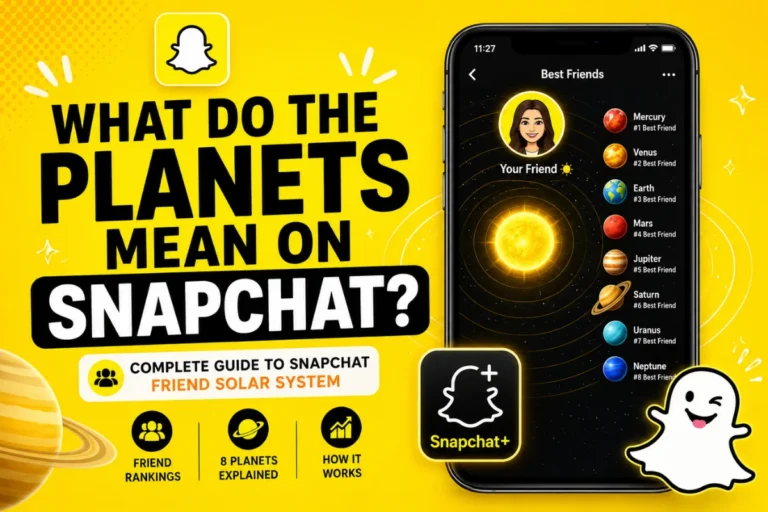
Want to understand how Snapchat’s Friend Solar System works? Check out the Snapchat planet order to see what each planet means and where your friends rank.
See How to delete snapchat stickers
Why Would You Want to Delete Stickers on Snapchat?
It happens to everyone. You’re editing a snap, things are looking great, and then a sticker ends up somewhere it really shouldn’t be. There are several common reasons people want to remove stickers on Snapchat:
- Accidental placement — you tapped the wrong sticker or it landed in an awkward spot
- Cluttered visuals — too many stickers make a snap look messy and distracting
- Privacy concerns — location stickers can reveal where you are without you realizing
- Change of mood — what felt funny five seconds ago just doesn’t work anymore
- Reusing a snap — you want to share it somewhere else without the Snapchat stickers on it
Whatever your reason, there’s a method for every scenario. Let’s go through them one by one.
Method 1: How to Delete a Sticker While Editing a Snap (Before Sending)
This is the easiest and most straightforward method. If you’re still on the editing screen — meaning you haven’t sent the snap yet — removing a sticker is incredibly simple.
Steps:
- While on the snap editing screen, tap and hold the sticker you want to remove
- Keep holding it — the sticker will lift slightly and become draggable
- A trash can icon will appear on the screen (on iPhone it appears at the bottom; on Android it appears on the right side)
- Drag the sticker over the trash can and release your finger
- The sticker disappears instantly
That’s really all there is to it. The sticker is gone and the rest of your snap stays exactly as it was.
Pro tip: If you accidentally delete something you didn’t mean to, shake your phone immediately or tap “Undo” if the option appears. Snapchat allows you to reverse recent edits while you’re still on the editing screen.
Method 2: How to Delete Stickers from Saved Snaps in Memories
Things get a little different when you’re dealing with a snap that’s already been saved to your Snapchat Memories. You can’t just tap and hold the way you would on a fresh snap — you need to go through the Edit Snap option first.
Steps:
- Open Snapchat and go to the Memories section (swipe up from the camera screen or tap the small circle below the shutter button)
- Find the snap you want to edit and tap on it to open it
- Tap the three-dot menu in the top-right corner
- Select “Edit Snap” from the dropdown menu
- Once you’re in edit mode, tap and hold the sticker you want to remove
- Drag it to the trash can icon and release
- Tap “Done” to save your changes
Repeat this for each sticker you want to remove. There’s no bulk delete option, so you’ll need to handle them one at a time.
Important note: This method only works for snaps that you created and saved in your Memories. You cannot use Snapchat’s built-in editor to remove stickers from other people’s snaps or from screenshots. For those, you’ll need a third-party tool (covered later in this guide).
Method 3: How to Delete Custom Stickers You Created on Snapchat
Snapchat lets you create your own custom stickers using the Scissors tool — you cut out a shape from a photo and save it as a sticker. If you’ve made custom stickers you no longer want, you can delete those too.
Steps:
- Open Snapchat and take or open a snap to get to the editing screen
- Tap the Sticker icon (the sticky note icon on the right side toolbar)
- Tap the Scissors icon at the top of the sticker drawer — this is where your custom stickers are saved
- Tap and hold the custom sticker you want to delete
- A trash/delete option will appear — tap it to confirm deletion
Your custom sticker is now permanently removed from your collection. Keep in mind that default Snapchat stickers — the ones built into the app — cannot be deleted from the library. Only custom stickers you’ve personally created can be removed this way.
Method 4: How to Delete Your Cameo Selfie Sticker
Cameo stickers are a special type of Snapchat sticker that uses your own face. If you want to remove your Cameo selfie data entirely, here’s how:
Steps:
- Open Snapchat and tap your profile icon in the top-left corner
- Tap the gear icon to open Settings
- Scroll down until you find “Cameos”
- Tap on it, then select “Clear My Cameo Selfie”
- Confirm by tapping “Clear”
This removes your selfie data from Snapchat’s Cameo feature, so your face will no longer appear in Cameo stickers going forward.
Method 5: How to Clear Your Recently Used Sticker List
Over time, your recently used stickers list fills up with a messy mix of old reactions, random emojis, and inside jokes you’ve long forgotten. While Snapchat doesn’t let you delete individual recently used stickers, you can clear the entire list by resetting your search history.
Steps:
- Open Snapchat and tap your profile icon in the top-left corner
- Tap the gear icon to open Settings
- Scroll all the way down to “Clear Search History”
- Tap it to confirm
This resets your recently used sticker suggestions and gives you a clean slate next time you open the sticker drawer.
Method 6: How to Remove Stickers from Photos Already Saved to Your Camera Roll
Here’s where things get a bit more complicated. Once a snap with stickers has been saved to your phone’s camera roll — or a screenshot has been taken — Snapchat’s built-in tools can no longer help you. The sticker is essentially “baked into” the image at that point.
For these situations, you’ll need a third-party editing app. Here are the best free options:
A: Canva (Free, Easy to Use)
- Open Canva on your phone and start a new design
- Upload your photo
- Scroll through the editing options and tap “Magic Eraser”
- Use your finger to rub over the sticker you want to remove
- Tap “Erase” — Canva’s AI will fill in the area automatically
- Save the cleaned-up photo
Option B: Snapseed (Free, by Google)
- Open Snapseed and import your photo
- Tap Tools and select “Healing”
- Paint over the sticker area with your finger
- The tool will blend the surrounding background to cover the sticker
- Save the result
Option C: TouchRetouch (Paid, Very Precise)
- Open TouchRetouch and load your photo
- Use the Object Removal Brush to highlight the sticker
- Tap “Go” to remove it cleanly
- Save the final image
These tools use AI to fill in the background intelligently, so the result looks natural rather than leaving an empty blank spot. Results vary depending on how busy the background is behind the sticker, but for most everyday snaps they work very well.
Can You Delete All Stickers at Once on Snapchat?
No — and this is one of the most common frustrations users have. Snapchat does not currently offer a bulk sticker removal feature. Whether you’re editing a fresh snap or working through your Memories, each sticker must be removed individually by dragging it to the trash.
If you’ve gone heavily overboard with stickers on a snap and want a completely clean version, the fastest solution is sometimes just to retake the snap or start the edit over from scratch.
What Happens After You Delete a Sticker?
Once a sticker is deleted from a snap, it’s permanently gone. Snapchat does not keep a history of deleted stickers and there’s no recycle bin or recovery option once you’ve left the editing screen.
The one exception is if you had previously saved the sticker to your Favorites collection. If it was saved there before deletion, you can still access it. Outside of that, once it’s deleted — it’s gone for good.
Tips to Avoid Accidental Sticker Placement in the Future
A little prevention saves a lot of clean-up. Here are some habits to help you keep your snaps sticker-free when you want them to be:
- Always preview before sending — take one last look at your snap before hitting send
- Use undo immediately — if you place a sticker by accident, shake your phone right away to undo it
- Be careful while scrolling the sticker drawer — it’s very easy to accidentally tap a sticker while browsing
- Zoom in before finalizing — zoom into the snap to double-check sticker placement
- Keep your custom sticker library clean — regularly review and delete custom stickers you no longer use
Privacy Note: Be Careful with Location Stickers
One thing that’s easy to overlook is location stickers — those stickers that automatically display the city, neighborhood, or landmark where you took the snap. If you’re posting publicly or sharing with a large group, a location sticker quietly broadcasts your real-world whereabouts to everyone who sees it.
It’s always worth removing location stickers before sharing snaps beyond your close friends, especially if you’re at home, at school, or somewhere you’d rather keep private. It takes two seconds to drag it to the trash, and it’s a smart habit to get into.
FAQs
Q: How do I delete a sticker on Snapchat while still editing?
Tap and hold the sticker until it lifts and becomes draggable, then drag it to the trash can icon that appears on screen. Release it over the trash can and it’s removed instantly.
Q: Can I remove a sticker from a snap I already sent?
No. Once a snap has been sent, you cannot edit or remove elements from it. The recipient has already received it. You can delete the entire message from the chat, but you cannot edit its contents.
Q: How do I delete stickers from Snapchat Memories?
Open the snap in Memories, tap the three-dot menu, select “Edit Snap,” then tap and hold each sticker and drag it to the trash can.
Q: Can I delete default stickers from Snapchat’s sticker library?
No. Built-in Snapchat stickers cannot be removed from the library. You can only delete custom stickers you created yourself using the Scissors tool.
Q: Is there an undo option after deleting a sticker?
Only while you’re still on the editing screen. Shake your phone or tap “Undo” immediately after the accidental deletion. Once you exit the editor, the change is permanent.
Q: How do I remove stickers from photos saved to my camera roll?
Snapchat’s tools won’t help once a photo is in your camera roll. Use a third-party app like Canva, Snapseed, or TouchRetouch to erase the sticker using AI-powered object removal.
Q: Can I remove multiple stickers at once on Snapchat?
No. Snapchat has no bulk removal feature. Each sticker must be deleted individually.
Q: How do I clear my recently used stickers on Snapchat?
Go to Settings and tap “Clear Search History.” This resets your recently used sticker suggestions.
Q: What happens to a deleted sticker — can I get it back?
No. Once deleted, a sticker is gone permanently unless you had previously saved it to your Favorites collection.
Q: How do I remove my Cameo selfie sticker?
Go to Settings, find “Cameos,” and tap “Clear My Cameo Selfie.” This removes your selfie data from the feature entirely.
Q: Why won’t the sticker drag to the trash can?
Make sure you’re pressing and holding the sticker firmly before dragging. If you’re in Memories, make sure you’ve selected “Edit Snap” first — stickers cannot be dragged outside of edit mode.
Conclusion
Knowing how to delete stickers on Snapchat is one of those small but genuinely useful things that makes your experience on the app so much smoother. Whether you’re catching a misplaced emoji before sending, cleaning up an old snap in Memories, removing a custom sticker from your collection, or dealing with a photo that’s already been exported — there’s a solution for every situation.
The main thing to remember is timing. Act while you’re still on the editing screen for the easiest, fastest removal. Use the Edit Snap option inside Memories for saved snaps. And when the photo has already left Snapchat and landed in your camera roll, reach for a third-party app like Canva or Snapseed to get the job done cleanly.
Stickers are one of the most fun parts of Snapchat — and now you have complete control over them, whenever and wherever you need it.