How to Cancel Snapchat Plus
Snapchat has become one of the most popular social apps for chatting, sharing stories, and using fun features like AI chats, custom icons, and Snapchat Planets. Many users subscribe to Snapchat Plus to unlock premium tools, but sometimes they decide to cancel the subscription.
You may want to cancel because you no longer use the premium features, want to save money, or simply want to take a break from the app. The good news is that canceling Snapchat Plus is simple and only takes a few minutes.
In this updated guide, you will learn:
- How to cancel Snapchat Plus on iPhone
- How to cancel Snapchat Plus on Android
- What happens after cancellation
- Whether you lose Snapchat Plus features immediately
- Common cancellation problems and fixes
- Latest Snapchat Plus subscription updates in 2026
This article follows the latest SERP trends, AEO optimization, and user-focused formatting so you can quickly find the answer you need.
What Is Snapchat Plus?
Before canceling, it helps to understand what Snapchat Plus actually offers.
Snapchat Plus is the premium subscription service from Snapchat. It gives users access to exclusive features that are not available in the free version.
Some popular Snapchat Plus features include:
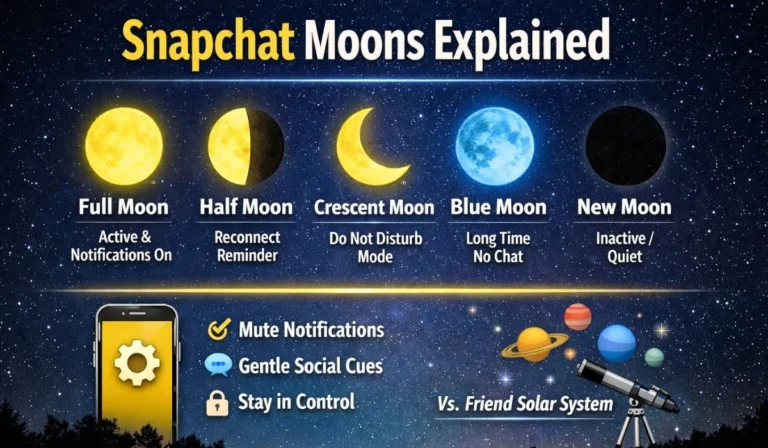
- Snapchat Planets
- Story rewatch indicator
- Ghost Trails
- Custom app icons
- Priority story replies
- AI chat customization
- Best friends solar system
- Early access experimental features
Snapchat continues adding new premium features regularly, which is why many users test the subscription for a few months before deciding whether to keep it.
Can You Cancel Snapchat Plus Anytime?
Yes, you can cancel Snapchat Plus anytime.
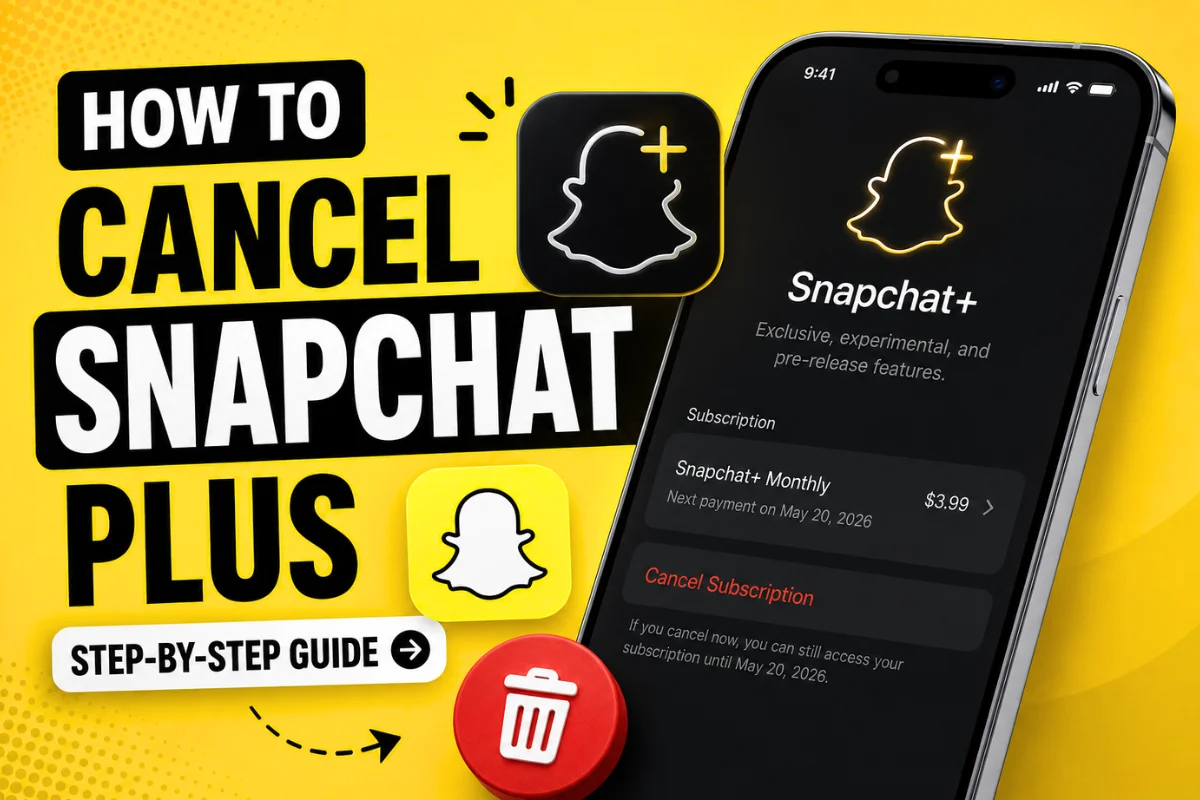
There is no long-term contract or cancellation fee. Once you cancel, your subscription remains active until the current billing cycle ends.
For example:
- If your monthly plan renews on June 30 and you cancel on June 10, you can still use Snapchat Plus until June 30.
- After that date, premium features stop working automatically.
This is one of the most searched questions about Snapchat Plus, especially among users who accidentally subscribed during the free trial.
How to Cancel Snapchat Plus on iPhone
If you subscribed using an iPhone, your payment is managed through your Apple ID subscriptions.
Follow these steps:
Step 1: Open Settings
Go to the Settings app on your iPhone.
Step 2: Tap Your Apple ID
Tap your name at the top of the screen.
Step 3: Open Subscriptions
Select “Subscriptions.”
You will see all active and expired subscriptions connected to your Apple account.
Step 4: Find Snapchat
Tap the Snapchat subscription from the list.
Step 5: Tap Cancel Subscription
Press “Cancel Subscription.”
Apple may ask for confirmation. Once confirmed, Snapchat Plus will stop renewing automatically.
Important Note for iPhone Users
Deleting Snapchat does not cancel Snapchat Plus.
Many users think uninstalling the app ends the subscription, but Apple subscriptions continue until manually canceled.
Always cancel from the Subscriptions section.
How to Cancel Snapchat Plus on Android
Android users usually subscribe through the Google Play Store.
Here is the updated process:
Step 1: Open Google Play Store
Launch the Play Store app on your phone.
Step 2: Tap Your Profile Icon
Tap your profile picture in the top-right corner.
Step 3: Select Payments & Subscriptions
Open “Payments & Subscriptions.”
Step 4: Tap Subscriptions
Choose “Subscriptions” to view active plans.
Step 5: Find Snapchat Plus
Tap the Snapchat subscription.
Step 6: Cancel the Subscription
Press “Cancel Subscription” and confirm your choice.
Your Snapchat Plus plan will remain active until the billing period ends.
How to Cancel Snapchat Plus Free Trial
Many users sign up for the Snapchat Plus free trial but forget to cancel before the renewal date.
The process is exactly the same:
- iPhone users cancel through Apple subscriptions
- Android users cancel through Google Play subscriptions
To avoid being charged:
- Cancel at least 24 hours before renewal
- Check the trial expiration date carefully
Even after cancellation, the free trial usually continues until the scheduled end date.
What Happens After You Cancel Snapchat Plus?
This is another trending search query in 2026.
When your subscription expires:
You Lose Premium Features
Features like:
- Snapchat Planets
- Custom icons
- Ghost Trails
- Story rewatch count
- AI customization
will disappear automatically.
Your Account Is Not Deleted
Canceling Snapchat Plus does not delete your Snapchat account.
Your chats, friends, memories, and stories remain safe.
Your Previous Settings May Reset
Some custom settings may return to default after the subscription expires.
For example:
- Custom icons may disappear
- Special badges may be removed
- Exclusive themes may reset
Why People Cancel Snapchat Plus
There are many reasons users decide to unsubscribe.
1. They Do Not Use Premium Features
Some users realize they mainly use Snapchat for chatting and stories.
Premium tools may not feel necessary.
2. Subscription Cost
Even though Snapchat Plus is relatively affordable, monthly subscriptions add up over time.
3. Curiosity Subscription
Many people subscribe only to test Snapchat Planets or hidden features.
After trying them, they cancel.
4. Too Many App Subscriptions
Users today manage multiple subscriptions like streaming apps, cloud storage, and AI tools.
Canceling unused subscriptions helps reduce expenses.
Common Problems When Canceling Snapchat Plus
Subscription Not Showing
Sometimes users cannot find Snapchat under subscriptions.
Possible reasons include:
- Logged into the wrong Apple ID
- Using another Google account
- Subscription purchased on a different device
Try checking all connected accounts.
Cancel Button Missing
If the cancel option is unavailable:
- The subscription may already be canceled
- The billing cycle may have expired
- Payment processing may be pending
Double-check your subscription status.
Still Charged After Cancellation
If you canceled but still got charged:
- Verify the cancellation confirmation email
- Check whether cancellation happened before renewal
- Contact Apple, Google, or Snapchat support
Usually, app stores handle billing issues directly.
How to Check if Snapchat Plus Is Canceled
You can confirm cancellation easily.
On iPhone
Go to:
Settings → Apple ID → Subscriptions
If Snapchat shows “Expires On” instead of “Renews On,” the cancellation worked.
On Android
Go to:
Google Play Store → Payments & Subscriptions → Subscriptions
You should see the expiration date instead of an active renewal notice.
Can You Reactivate Snapchat Plus Later?
Yes.
You can subscribe again anytime.
Many users cancel temporarily and reactivate later when Snapchat introduces new premium features.
Your account history and friends stay unchanged.
Latest Snapchat Plus Updates
Snapchat continues improving its premium subscription service.
Recent updates include:
- Expanded AI chat tools
- More Bitmoji customization
- Additional app themes
- Enhanced story controls
- Improved friend interaction features
Because Snapchat frequently updates Plus features, some users unsubscribe and later return when new tools launch.
Is Snapchat Plus Worth It?
Whether Snapchat Plus is worth it depends on how often you use Snapchat.
It may be worth subscribing if you:
- Use Snapchat daily
- Enjoy customization
- Like testing early features
- Use Snapchat Planets regularly
It may not be necessary if you mainly:
- Send basic snaps
- Use chats only
- Rarely open the app
Many users try the monthly plan first before committing long term.
Quick Recap
Here is a simple summary of how to cancel Snapchat Plus:
On iPhone
- Open Settings
- Tap Apple ID
- Go to Subscriptions
- Select Snapchat
- Tap Cancel Subscription
On Android
- Open Google Play Store
- Go to Payments & Subscriptions
- Open Subscriptions
- Select Snapchat
- Tap Cancel Subscription
Remember:
- Deleting the app does not cancel the subscription
- You keep premium access until the billing cycle ends
- Your Snapchat account stays active
Final Thoughts
Canceling Snapchat Plus is quick and easy once you know where the subscription is managed. Most users can complete the process in less than two minutes using Apple or Google subscription settings.
Before canceling, make sure to check your renewal date so you avoid unexpected charges. If you ever want premium features again, you can reactivate Snapchat Plus anytime from the app store.
As Snapchat keeps adding new tools and AI features, many users subscribe again later to test the latest updates.