How to Do a Boomerang on Snapchat?
A boomerang is one of the easiest ways to make a Snapchat video more fun. It creates a short clip that plays forward and then backward, giving your video a repeating motion.
If you have used Instagram before, you may already know the classic boomerang effect. On Snapchat, a similar effect is available through the Bounce feature.
Snapchat’s current video tools also include regular looping, while Bounce lets you select a part of your video and play it back and forth. If you’re using Snapchat regularly to keep up with friends, features like these can also be useful when maintaining a Snapchat streak. Snapchat’s official support currently lists Bounce as a playback option for video Snaps.
What Is a Boomerang on Snapchat?
A boomerang on Snapchat is a short video that moves forward and then reverses back to the beginning.
For example, you could record yourself:
- Jumping in the air
- Waving your hand
- Tossing something
- Turning around
- Dancing
- Pouring a drink
- Making a quick facial expression
Instead of playing the clip only once, the Bounce effect makes the movement repeat in a forward-and-backward style.
Snapchat officially calls this feature Bounce. It is different from a normal video loop because Bounce reverses the selected part of your video instead of simply starting the same clip again.
How to Do a Boomerang on Snapchat
The basic process is simple. You first record a video Snap and then choose the Bounce playback option.
Step 1: Open Snapchat
Open the Snapchat app on your phone and go to the camera screen.
Make sure you are using a current version of Snapchat. The position and appearance of editing buttons can change when Snapchat updates its app.
Step 2: Record a Short Video
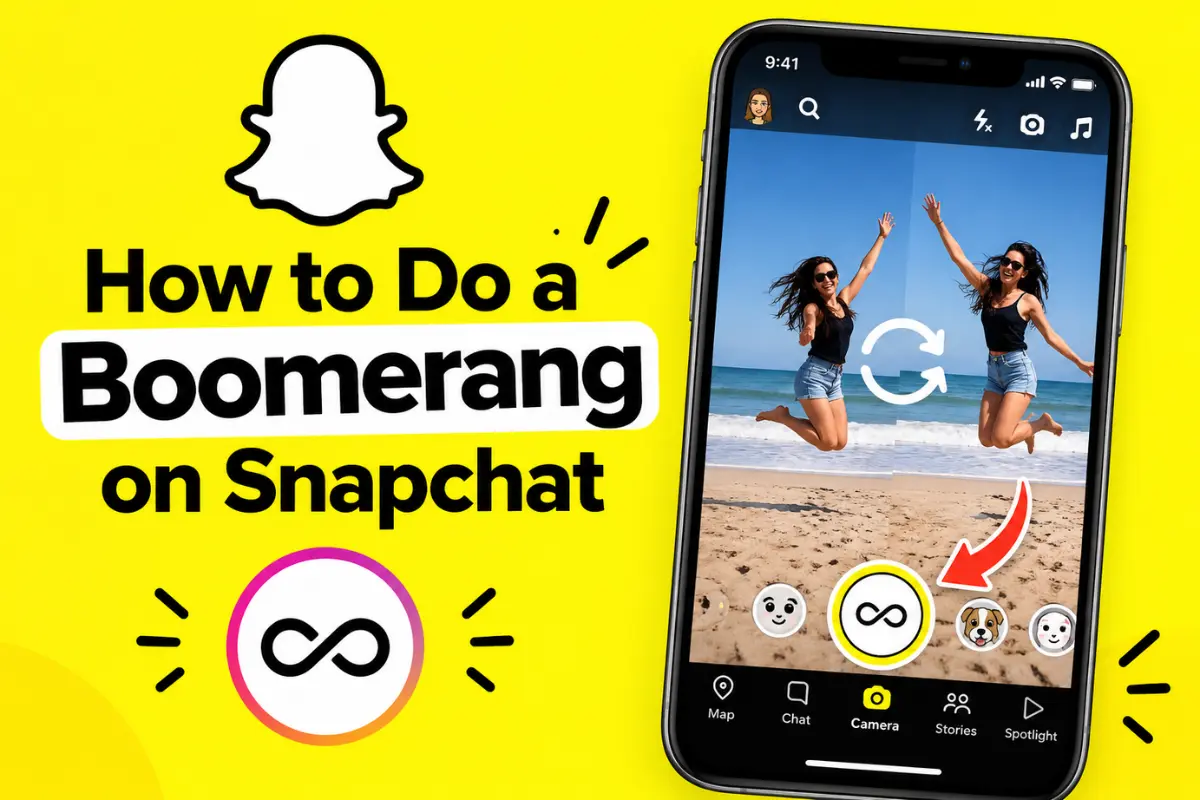
Press and hold the camera button to record a video Snap.
Try to keep the movement short and clear. A quick action usually works better for a boomerang effect than a long scene.
For example, you could record yourself waving your hand for a few seconds.
Snapchat’s current instructions confirm that holding the Camera button creates a video Snap.
Step 3: Find the Bounce Option
After recording, look at the editing controls around your video preview.
Tap the Bounce playback option.
Snapchat’s support instructions say that you can press and hold the camera button to record a video, tap the Bounce playback mode, and then use the slider to choose the section you want to bounce.
Step 4: Select the Part You Want to Bounce
After choosing Bounce, Snapchat gives you control over which portion of the video should have the effect.
Use the slider to select the best part.
You do not always need to use the entire recording. Choosing a short movement can make the final result look smoother.
Step 5: Preview Your Boomerang
Watch the video before sending it.
Check how the movement looks when it goes forward and then backward. If the effect starts or ends awkwardly, adjust the selected section.
You can experiment with different portions until the movement looks natural.
Step 6: Add Creative Effects
Once you are happy with the Bounce effect, you can continue editing your Snap.
Depending on the tools available on your version of Snapchat, you can add things such as:
- Text
- Stickers
- Filters
- Sounds
- Captions
- Other creative effects
Snapchat has also expanded its video editing tools. Its Timeline Editor allows users to trim clips, split or duplicate sections, change speed, add music, and add captions and stickers.
How to Make a Regular Loop on Snapchat
There is an important difference between a Bounce and a regular loop.
A normal loop makes your video continue playing repeatedly. Bounce, on the other hand, plays the selected portion forward and then backward.
To use a normal loop, record your video and look for the repeat or loop control in the video editing options.
Snapchat says the repeat icon lets you choose whether a video Snap plays once or continues playing on a loop until the viewer closes it.
So, if you want the classic forward-and-backward effect, choose Bounce. If you simply want the video to repeat, use the regular loop option.
Can You Make a Boomerang From an Existing Video?
Snapchat’s Bounce instructions focus on video Snaps recorded in the app. If you already have a video saved on your phone, the exact editing options available can depend on your Snapchat version and the type of media you import.
If Bounce is not available for the imported video, you can create the boomerang effect using another video editor and then upload the finished clip to Snapchat.
This can also be useful if you want more control over the exact section that repeats.
Boomerang vs. Loop on Snapchat
These two options can look similar, but they work differently.
Bounce:
The selected video section plays forward and then backward.
Loop:
The video repeats from the beginning after it reaches the end.
For a jumping, waving, or quick movement effect, Bounce usually gives you the more traditional boomerang appearance.
For a video that should simply keep playing, a regular loop may be better.
Tips for Making a Better Snapchat Boomerang
Keep the Movement Short
A short movement usually looks cleaner when repeated.
Try recording a quick action instead of moving around for a long time.
Keep Your Phone Steady
A stable camera can make the repeated movement easier to watch.
You can hold your phone with both hands or place it on a stable surface.
Use Good Lighting
Bright, even lighting can make your video look clearer.
Natural light can work well, especially when you are recording indoors.
Choose One Clear Action
A boomerang works best when the viewer can easily understand the movement.
A wave, jump, hair flip, or quick turn can work better than a complicated action.
Check the Reverse Motion
Remember that Bounce plays your selected clip backward after playing it forward.
Some actions may look strange when reversed. Preview your Snap before sharing it.
Why Can’t I Find Bounce on Snapchat?
If you cannot find the Bounce option, first make sure Snapchat is updated.
The app’s interface can change with new updates, and features may not always appear in exactly the same place.
Also remember that Snapchat’s current support documentation refers to the effect as Bounce, not simply “Boomerang.”
Recent user discussions in September 2026 also show that some people have noticed changes to how Snapchat’s boomerang-style video behavior works after updates. This means the experience may look slightly different from older tutorials or screenshots.
If the option is missing, check the latest Snapchat version and look through the video playback and editing controls.
Final Thoughts
Making a boomerang on Snapchat is easy once you know where the Bounce option is located.
Record a short video, choose Bounce, select the part you want to repeat, preview the result, and then add any other creative effects you like.
The main thing to remember is that Bounce creates the forward-and-backward effect, while a regular loop simply repeats the video.
Because Snapchat continues to update its camera and editing tools, the exact appearance or position of these controls may change over time. The best approach is to use the latest version of Snapchat and check the current video editing controls.