How to Turn Off Location on Snapchat: A Complete Guide
Snapchat makes it easy to share your location with friends through Snap Map. While this can be useful when you want friends to know where you are, you may not always want your location visible.
If you are wondering how to turn off location on Snapchat, you have a few options. You can hide your location with Ghost Mode, limit location sharing to certain friends, or remove Snapchat’s location permission from your phone.
The latest Snapchat support information also makes an important distinction between hiding your location from friends and stopping Snapchat from accessing your device location.
What Happens When You Turn Off Location on Snapchat?
When you turn off location sharing, your friends will no longer be able to see your current location on Snap Map when Ghost Mode is enabled.
However, Ghost Mode does not completely stop Snapchat from accessing your location. If Snapchat still has location permission on your phone, the app may continue to use your general location for features and services.
So, if your goal is complete location privacy from Snapchat itself, you should also review your phone’s location permissions.
How to Turn Off Location on Snapchat
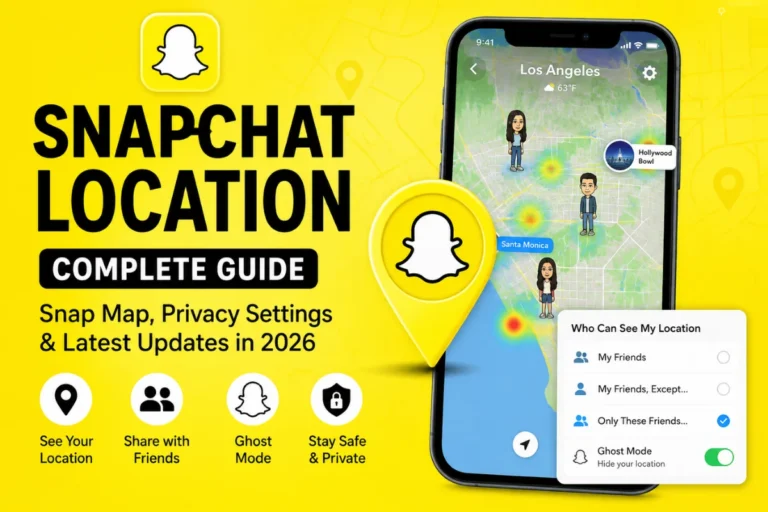
The easiest way to hide your location from Snapchat friends is to turn on Ghost Mode.
Step 1: Open Snapchat
Launch the Snapchat app on your iPhone or Android phone.
Make sure you are logged into the account where you want to change your location settings.
Step 2: Open Snap Map
Tap the Map icon to open Snap Map.
You should see the map along with your Bitmoji or other available map information.
Step 3: Open Map Settings
Look for the gear icon ⚙️ on the Map screen and tap it.
This opens your location-sharing settings.
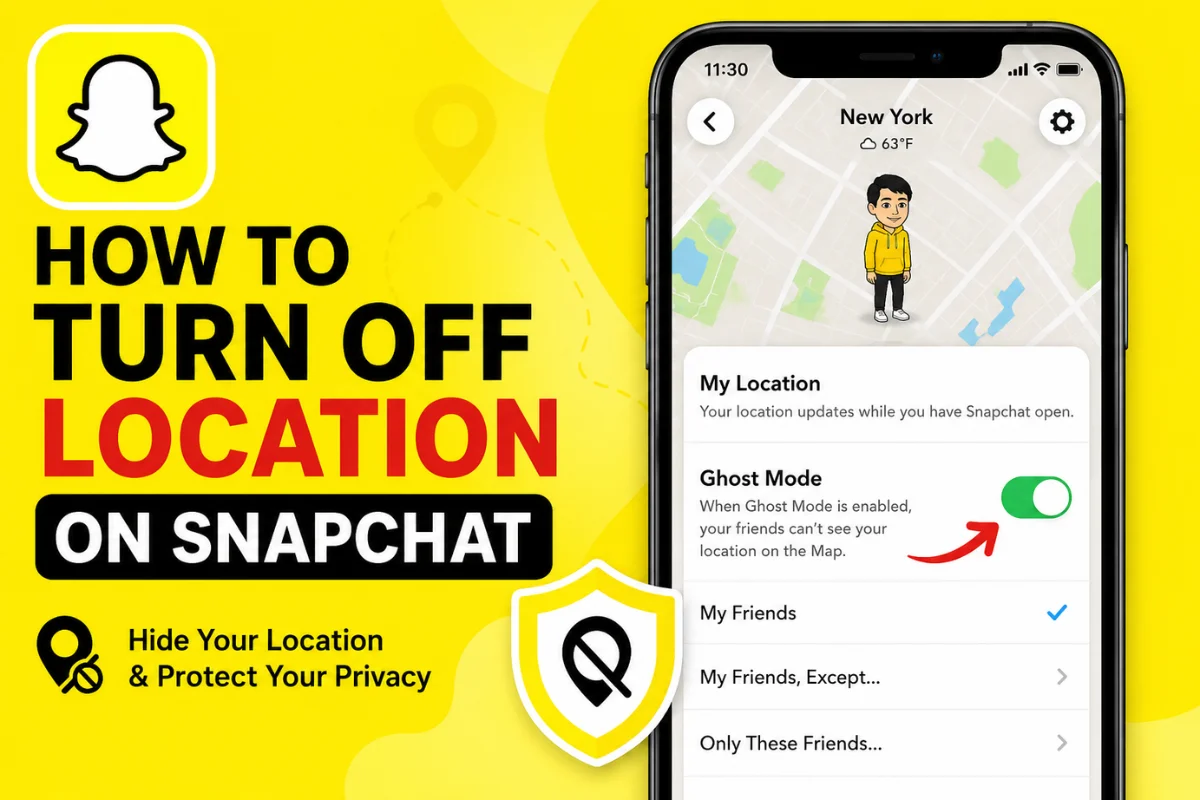
Step 4: Turn On Ghost Mode
Find Ghost Mode and turn it on.
Snapchat will then hide your location from other Snapchatters. Snapchat’s current support documentation confirms that Ghost Mode is the setting used to stop sharing your location with friends on Snap Map.
Once Ghost Mode is active, your friends won’t be able to see your location on the Map.
How to Turn Off Snapchat Location From Settings
You can also reach the location-sharing settings through Snapchat’s main Settings menu.
Go to:
Profile → Settings ⚙️ → My Privacy & Data → See My Location
From there, you can choose how your location is shared.
Depending on what you want, Snapchat currently provides options such as:
- My Friends
- My Friends, Except…
- Only These Friends…
- Ghost Mode
These options allow you to control exactly who can see your location.
How to Hide Your Location From Certain Friends
You don’t necessarily have to hide your location from everyone.
If you want most of your friends to see your location but want to exclude specific people, choose My Friends, Except…
You can then select the friends who should not have access to your location.
This can be useful if you want to keep using Snap Map while having more control over your privacy.
Use “Only These Friends”
Another option is Only These Friends…
This allows you to select the specific friends who can see your location.
It’s a good choice if you want tighter control rather than sharing your location with your entire Snapchat friend list.
How to Completely Stop Snapchat From Accessing Your Location
Turning on Ghost Mode hides your location from friends, but it doesn’t necessarily prevent Snapchat from receiving location information.
For stronger privacy, you can remove Snapchat’s location permission from your phone.
On iPhone
Open:
Settings → Privacy & Security → Location Services → Snapchat
Then choose Never to prevent Snapchat from accessing your device location. Snapchat’s current support documentation specifically recommends this option when you want to stop sharing location data with Snapchat on iOS.
On Android
The exact wording can vary depending on your Android version and phone manufacturer.
Generally, go to:
Settings → Apps → Snapchat → Permissions → Location
Then select Don’t allow or Deny.
This prevents Snapchat from using your phone’s location permission.
Ghost Mode vs. Turning Off Location Permission
These two settings are easy to confuse, but they do different things.
Ghost Mode controls whether your location is visible to other Snapchat users on Snap Map.
Phone location permissions control whether Snapchat can access your device’s location.
So if your main concern is hiding from friends, Ghost Mode is usually enough.
If you want to prevent Snapchat from accessing your device location, you should also change the location permission in your phone’s settings.
Does Snapchat Still Show Your Last Location?
Your location behavior can depend on your device permission settings.
Snapchat says that when location access is set to Only while using, your location on Snap Map can expire after 24 hours. If location access is set to Always, location sharing can continue until you turn it off or it expires.
This is why simply closing Snapchat isn’t the same as turning off location sharing.
If you don’t want friends seeing your location, it’s better to check your Snap Map privacy settings directly.
Can You Completely Disable Snap Map?
Not exactly.
Snapchat says that once Snap Map has been set up, you cannot disable Snap Map altogether.
However, you can hide your location by using Ghost Mode.
This means you don’t need to remove Snap Map from the app just because you don’t want to share your location.
What About Snapchat’s Newer Location Features?
Snapchat’s location features have expanded beyond simply showing your Bitmoji on Snap Map.
For example, Snapchat now supports background location sharing, which can allow selected friends or family members to see real-time location even after you close the app. Snapchat also has features such as Arrival Notifications that can notify someone when you arrive at a selected place.
Because of these newer features, it’s worth checking your location settings regularly.
If you don’t need background location sharing, consider limiting Snapchat’s device permission to Only while using or disabling location access entirely.
Does Ghost Mode Stop All Location Sharing?
No.
This is one of the most important things to understand.
Ghost Mode hides your location from friends on Snap Map, but Snapchat may still have access to your location if you have granted the app location permission. Snapchat specifically notes that Ghost Mode does not turn off location sharing with the Snapchat app itself.
If you want maximum privacy, use Ghost Mode and review your phone’s location permission.
Can Snaps Still Appear on Snap Map?
Yes.
Turning off your personal location doesn’t necessarily mean every piece of content associated with Snap Map disappears.
Snapchat warns that Snaps submitted to Snap Map can still appear on the Map regardless of your location-sharing setting.
If you have previously submitted content to Snap Map or another public area, you may need to manage or delete that content separately.
How to Check if Your Location Is Really Off
After changing your settings, take a moment to verify them.
Open Snap Map and check the location-sharing controls.
Make sure Ghost Mode is enabled if you want your location hidden from friends.
Then check your phone’s Location Services or Location Permissions for Snapchat if you also want to stop the app from accessing your device location.
It’s also a good idea to review these settings after major Snapchat app updates because the names or locations of privacy options can change.
Final Thoughts
Learning how to turn off location on Snapchat is simple once you understand the difference between Snap Map privacy and your phone’s location permission.
For most people, turning on Ghost Mode is the quickest way to hide their location from friends.
If you want stronger privacy, also remove Snapchat’s location permission from your iPhone or Android device. And if you use features such as background location sharing or Arrival Notifications, review those settings as well.
The best approach is to share your location only with people you trust and only when you actually need the feature. Snapchat itself recommends regularly checking who can see your location and being especially careful with background location sharing.