How to Pause Snapchat Location in 2026: A Complete Guide
Snapchat’s Snap Map makes it easy for friends to see where you are, but there are times when you may not want your location to keep updating. Whether you are taking a break from Snapchat, traveling, or simply want more privacy, you can temporarily stop others from seeing your location.
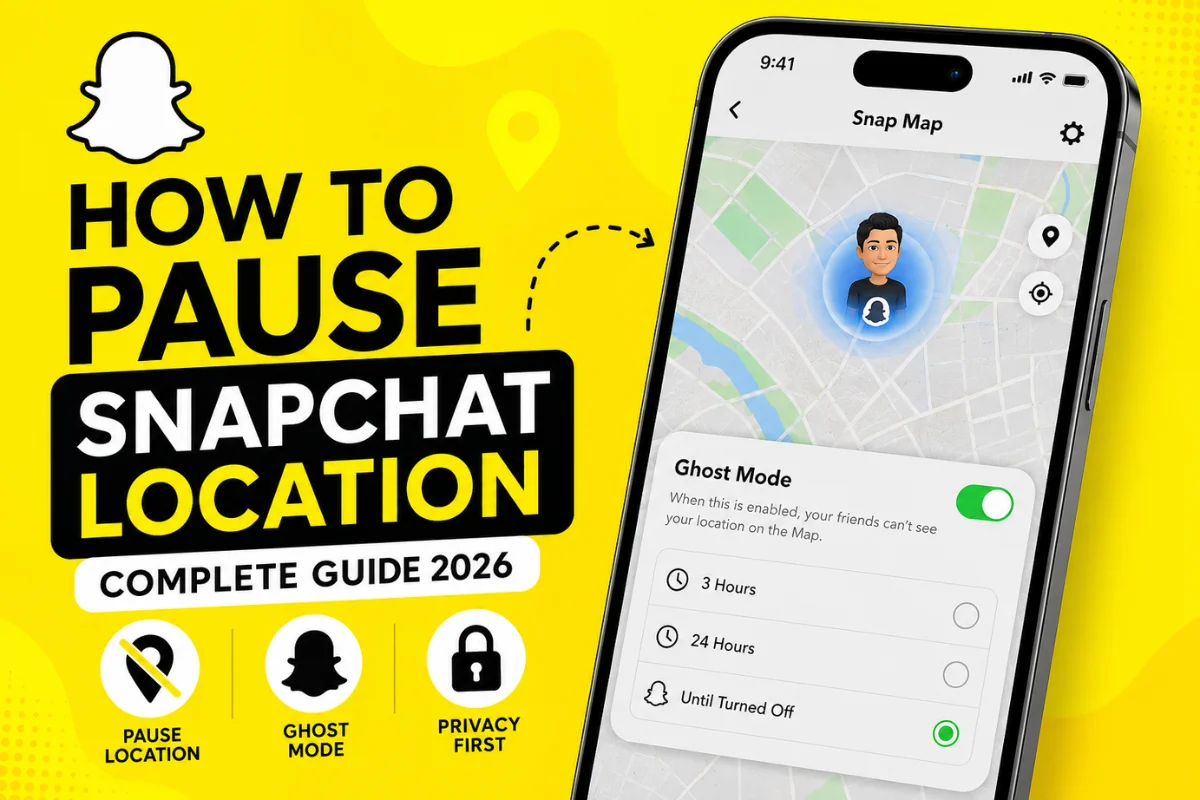
Snapchat does not have a button literally called “Pause Location.” Instead, the main way to pause your visible location is Ghost Mode. Snapchat’s current support documentation also confirms that you can use Ghost Mode for a set period, including 3 hours, 24 hours, or until you manually turn it off.
What Does Pausing Snapchat Location Mean?
When people say they want to “pause” their Snapchat location, they usually mean they want to stop their friends from seeing their current location on Snap Map.
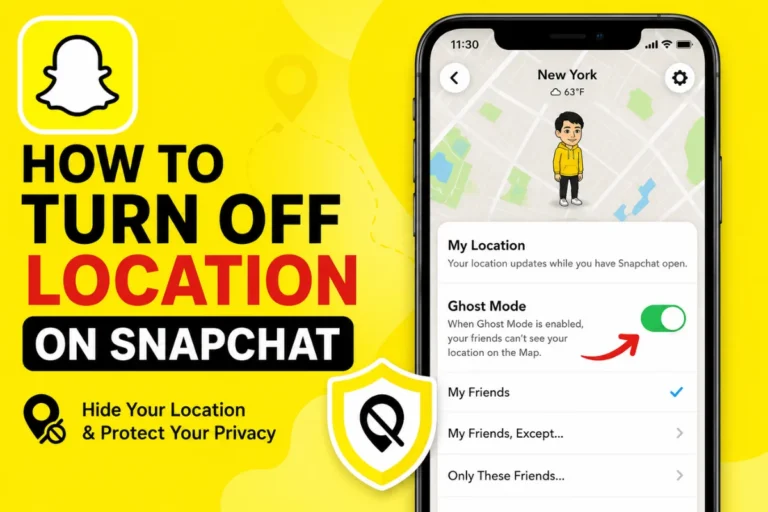
The easiest solution is to turn on Ghost Mode.
With Ghost Mode enabled, your location is hidden from other Snapchat users on the Map. However, Snapchat can still have access to your device location if you have granted the app location permission.
So, Ghost Mode is mainly about hiding your location from other people, rather than completely turning off location access for Snapchat.
How to Pause Your Location on Snapchat
Follow these steps to temporarily hide your location:
Step 1: Open Snapchat
Launch the Snapchat app on your iPhone or Android phone.
Make sure you are signed into the account whose location you want to pause.
Step 2: Open Snap Map
From the Snapchat camera screen, open Snap Map.
You can usually access it by tapping the Map icon or swiping to the Map screen, depending on your current Snapchat app layout.
Step 3: Open Map Settings
Once Snap Map is open, look for the gear icon ⚙️.
Tap it to open your Map privacy settings. Snapchat’s current instructions place the location controls inside these Map Settings.
Step 4: Turn on Ghost Mode
Find Ghost Mode and switch it on.
Your location will then be hidden from everyone else on Snap Map.
Step 5: Choose How Long to Pause It
Depending on your account and app version, Snapchat may give you timer options.
Current Snapchat support lists:
- 3 hours
- 24 hours
- Until Turned Off
Choose the option that works for you.
This is useful if you only want to hide your location temporarily rather than keeping Ghost Mode enabled permanently.
Can You Pause Snapchat Location Without Ghost Mode?
There is another approach if your goal is to reduce location updates rather than simply hide your location.
Snapchat currently supports different device location-permission behaviors, including “Only while using” and “Always” location access.
If Snapchat has Only while using permission, Snap Map updates your location while you use Snapchat. Once you close the app, it can continue showing your last location rather than updating it until you open Snapchat again.
Snapchat says that with “Only while using” permissions, a location on Snap Map can expire after 24 hours.
This is different from Ghost Mode because your previous location may remain visible for a period of time.
How to Stop Snapchat From Updating Your Location in the Background
If you are concerned about background location sharing, check Snapchat’s location permission in your phone settings.
On iPhone
Go to:
Settings → Privacy & Security → Location Services → Snapchat
From there, choose an appropriate permission such as While Using the App or turn location access off.
The exact options can vary depending on your iOS version.
On Android
Go to:
Settings → Apps → Snapchat → Permissions → Location
You can then review Snapchat’s location permission and select an option such as Allow only while using the app or deny location access, depending on your Android version.
Snapchat specifically recommends using device settings to stop background location sharing and changing Snapchat’s permission to Only while using.
Does Ghost Mode Freeze Your Location?
Not exactly.
This is an important difference.
Ghost Mode does not create a fake location or necessarily freeze your location at your previous position. Instead, it hides your location from other Snapchatters on Snap Map.
Snapchat can still receive your location if you have given the app permission to access it.
So if someone asks whether Ghost Mode “freezes” your location, the better answer is:
No. Ghost Mode hides your location from other people rather than creating a frozen or fake location.
Can You Pause Your Location for Just One Person?
Yes, you can control who can see your location without completely hiding it from everyone.
Snapchat currently provides options such as:
- My Friends
- My Friends, Except…
- Only These Friends
- Ghost Mode
With My Friends, Except…, you can prevent selected friends from seeing your location.
With Only These Friends, you can choose the specific friends who are allowed to see it.
This can be a better choice if you want to continue sharing your location with close friends but not with everyone on your friends list.
Does Snapchat Notify Friends When You Turn on Ghost Mode?
Turning on Ghost Mode is designed to hide your location rather than send a notification to your friends.
Your friends simply won’t be able to see your location on the Snap Map while Ghost Mode is active.
Snapchat’s current support information also notes that your own Bitmoji can remain visible to you on the Map, with a blue sign showing a ghost icon.
What Happens When You Turn Ghost Mode Off?
When you turn Ghost Mode off, your location-sharing settings become active again according to the audience you previously selected.
For example, if you had selected My Friends, your location can become visible to those friends again.
If you used a Ghost Mode timer, Snapchat can automatically return to normal location sharing when the selected period ends.
Can You Completely Disable Snap Map?
Snapchat does not currently provide a way to completely disable Snap Map after you have set it up.
Instead, Snapchat recommends using Ghost Mode to hide your location from other Snapchatters.
You can also manage Snapchat’s access to your device location through your phone’s privacy settings.
Important: Your Snaps Can Still Appear on Snap Map
There is one detail many people overlook.
Turning on Ghost Mode does not necessarily prevent Snaps you submit to Snap Map from appearing on the Map.
Snapchat specifically warns that Snaps submitted to Snap Map can still appear regardless of your location-sharing setting.
So if privacy is your goal, be careful about what you submit publicly.
What Has Changed in Snapchat Location Sharing?
Snapchat’s latest support information shows that location sharing is becoming more flexible.
Users can now manage not only who sees their location but also whether location is shared while using Snapchat or in the background with trusted people. Snapchat also provides temporary Ghost Mode timers, making it easier to hide your location without remembering to turn it back on later.
Another useful privacy feature is the ability to control Footsteps, which records location-based travel history. Snapchat allows users to turn off saving new Footsteps and clear existing Footsteps history from the Map settings.
These options make it easier to customize Snapchat location privacy instead of relying on one simple on/off switch.
Final Thoughts
If you want to pause your Snapchat location, the simplest method is to turn on Ghost Mode from Snap Map Settings.
For a short break, choose the 3-hour or 24-hour timer. If you want to keep your location hidden until you decide otherwise, choose Until Turned Off.
If your concern is background tracking, review Snapchat’s location permission in your phone settings and consider changing it to Only while using the app.
Most importantly, remember that hiding your location from friends is not exactly the same as removing Snapchat’s access to your device location. Understanding that difference can help you choose the right privacy setting.