How to Delete Snapchat Messages?
Sometimes you send a Snapchat message and immediately wish you had not. Maybe you made a typo, sent it to the wrong person, or simply want to remove an old message from a conversation.
Fortunately, Snapchat lets you delete messages that you have sent in a Chat. You can also adjust how long chats remain in a conversation or clear a conversation from your Chat feed.
However, deleting a conversation and deleting an individual message are two different things.
In this guide, you will learn how to delete Snapchat messages, what happens after you delete them, how to remove saved messages, and what you should know about to delete Snapchat current chat settings.
Can You Delete Messages on Snapchat?
Yes. Snapchat allows you to delete messages that you have sent in a Chat.
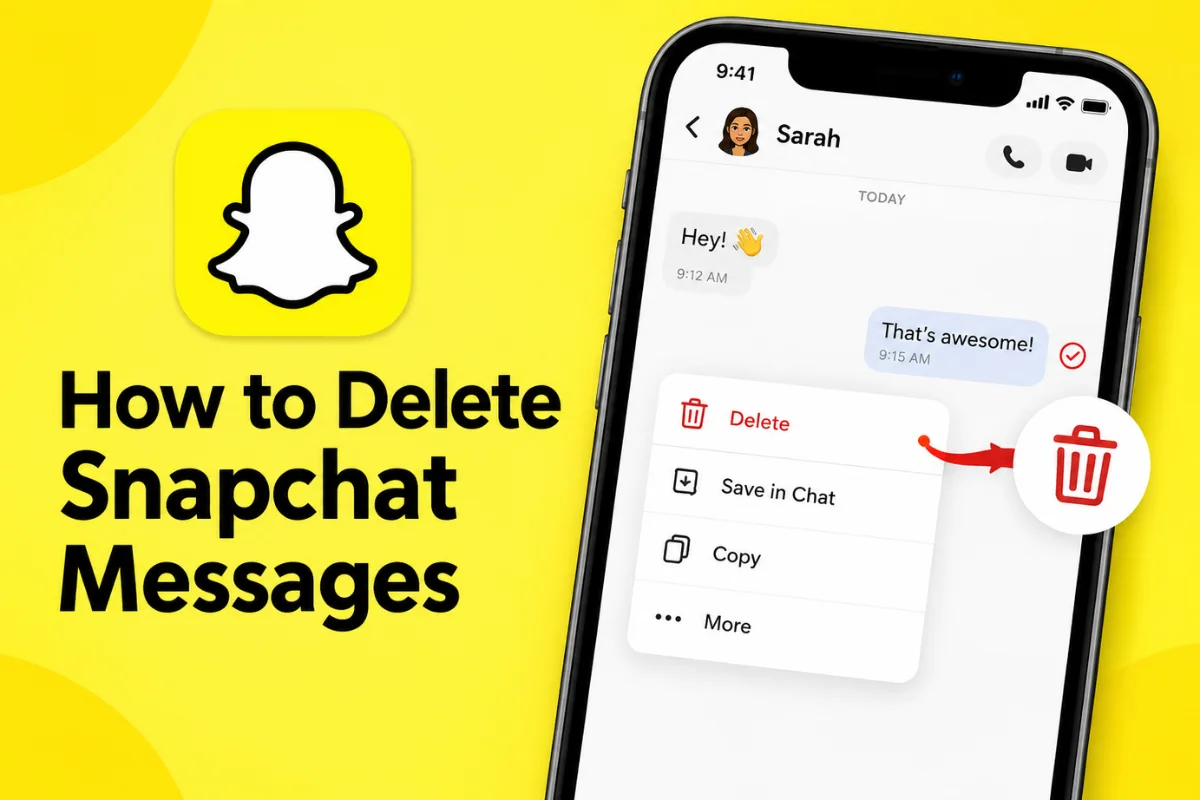
To delete a message, open the conversation, press and hold the message, and select Delete. Snapchat says it will attempt to remove the message from its servers and your friends’ devices.
However, the other person can see that a message was deleted in the Chat.
You also cannot delete messages that were sent by another Snapchatter.
How to Delete a Snapchat Message
Deleting a message is straightforward and only takes a few steps.
Step 1: Open Snapchat
Open the Snapchat app on your iPhone or Android phone and sign in to your account.
Step 2: Open the Chat Screen
From the Camera screen, swipe right to open your Chat feed.
Find the friend or group where you sent the message you want to remove.
Step 3: Open the Conversation
Tap the conversation to open the Chat.
Scroll through the messages until you find the one you want to delete.
Step 4: Press and Hold the Message
Press and hold the message you sent.
A menu should appear with different options.
Step 5: Tap Delete
Select Delete and confirm the action if Snapchat asks you to do so.
The message will then be marked as deleted in the conversation.
Can You Delete a Saved Snapchat Message?
Yes, you can delete a message that you previously saved if you sent it.
Saved messages have a gray background in Chat, making them easy to identify. Snapchat explains that saved messages are visible to everyone in the conversation.
To delete your saved message:
- Open the Chat.
- Find the saved message.
- Press and hold it.
- Tap Delete.
- Confirm the deletion.
Deleting a saved message does not mean the other person never saw it. They may have already read, screenshotted, or otherwise captured it.
What Happens When You Delete a Snapchat Message?
When you delete a message, Snapchat attempts to remove it from its servers and the devices of people in the conversation.
However, removal may not happen immediately in every situation. Snapchat notes that a poor internet connection or an older version of the app can sometimes prevent the deletion from working right away.
There is another important detail: the other person can see that a message was deleted.
So, deleting a message does not necessarily make the action invisible.
Can You Delete Someone Else’s Message?
No.
You can delete messages that you have sent, but you cannot delete messages sent by another person in a normal one-to-one or group Chat.
If someone sends you a message that you do not want to see, you can use other Snapchat options such as blocking, reporting, or managing the conversation instead.
How to Delete an Entire Snapchat Conversation
If your goal is simply to remove a conversation from your Chat feed, you can use Snapchat’s Clear Conversations option.
This is different from deleting individual messages.
On current Snapchat settings, the general path is:
Profile → Settings → My Privacy & Data → Clear Data → Clear Conversations
On iPhone, you can select the X next to a person’s name to clear the conversation from the Chat screen.
On Android, Snapchat provides a Clear Conversation option in the same data-management area.
Important Difference
Clearing a conversation does not delete saved or sent content.
It mainly removes the conversation from your Chat feed.
If you want a particular message removed, you need to press and hold that message and choose Delete.
How Long Do Snapchat Messages Stay?
Snapchat automatically deletes many chats according to the conversation’s deletion settings.
For one-to-one and group conversations, Snapchat currently says chats are automatically deleted by default 24 hours after everyone has viewed them or 31 days after they were sent, whichever comes first.
You can also change the setting to:
- After Viewing
- 24 Hours After Viewing
- 7 Days After Viewing
- Never
Anyone in the conversation can change this setting, and Snapchat displays a status message when the setting changes.
This means you may not always need to manually delete ordinary messages.
How to Change Snapchat Chat Deletion Settings
If you want messages to disappear sooner or stay longer, you can change the Chat retention setting.
Follow these steps:
- Open Snapchat.
- Go to the Chat screen.
- Press and hold the friend’s or group’s name.
- Tap Chat and Notification Settings.
- Select Delete Chats…
- Choose your preferred setting.
You can select After Viewing, 24 Hours After Viewing, 7 Days After Viewing, or Never.
Keep in mind that changing this setting does not necessarily change how older messages were originally configured. Snapchat says messages sent after a retention setting is changed follow the new setting, while older messages retain the setting that applied when they were sent.
Can Someone Screenshot a Deleted Snapchat Message?
Yes.
Deleting a message does not guarantee that nobody has a copy of it.
The recipient may have already taken a screenshot, used another screen-capture method, or photographed their screen before you deleted the message.
Snapchat specifically warns users that people who see their messages can potentially save them.
For this reason, it is better to treat anything you send on Snapchat as something the recipient could potentially keep.
What About Snapchat Snaps Sent in Chat?
You can also delete a Snap sent in Chat.
Press and hold the Snap and tap Delete.
Snapchat says you can delete a Snap when it is delivered or has already been opened. Snapchat will attempt to remove it from its servers and the recipient’s device, although removal can sometimes take longer depending on connectivity or app versions.
The other person will be able to see that the Snap was deleted.
Can You Delete My AI Messages?
Snapchat handles conversations with My AI differently from ordinary friend chats.
Snapchat says content shared with My AI is retained until you delete it. You can delete individual My AI content within the available period or use the Clear My AI Data option in Settings to clear past content.
Snapchat also notes that deletion of relevant My AI data from its servers can take up to 30 days.
What If the Delete Option Is Missing?
If you cannot find the Delete option, first make sure you are pressing and holding a message that you sent.
You cannot delete another person’s message.
It is also worth updating Snapchat to the latest version. Snapchat recommends using the latest app version for certain Chat and deletion features.
If the problem continues, close and reopen the app and check your internet connection.
Final Thoughts
Deleting Snapchat messages is easy once you know the difference between deleting a message and clearing a conversation.
To remove a message you sent, open the Chat, press and hold the message, and tap Delete. Remember that the other person can see that a message was deleted, and deletion cannot undo screenshots or other copies they may have made.
If you simply want to remove a conversation from your Chat feed, use Clear Conversations instead. This does not remove saved or sent messages.
Snapchat also gives users control over automatic Chat deletion, with options ranging from deleting messages after viewing to keeping them indefinitely.
The safest approach is to think carefully before sending anything private. Once another person has seen a message, you cannot completely control what happens to it afterward.