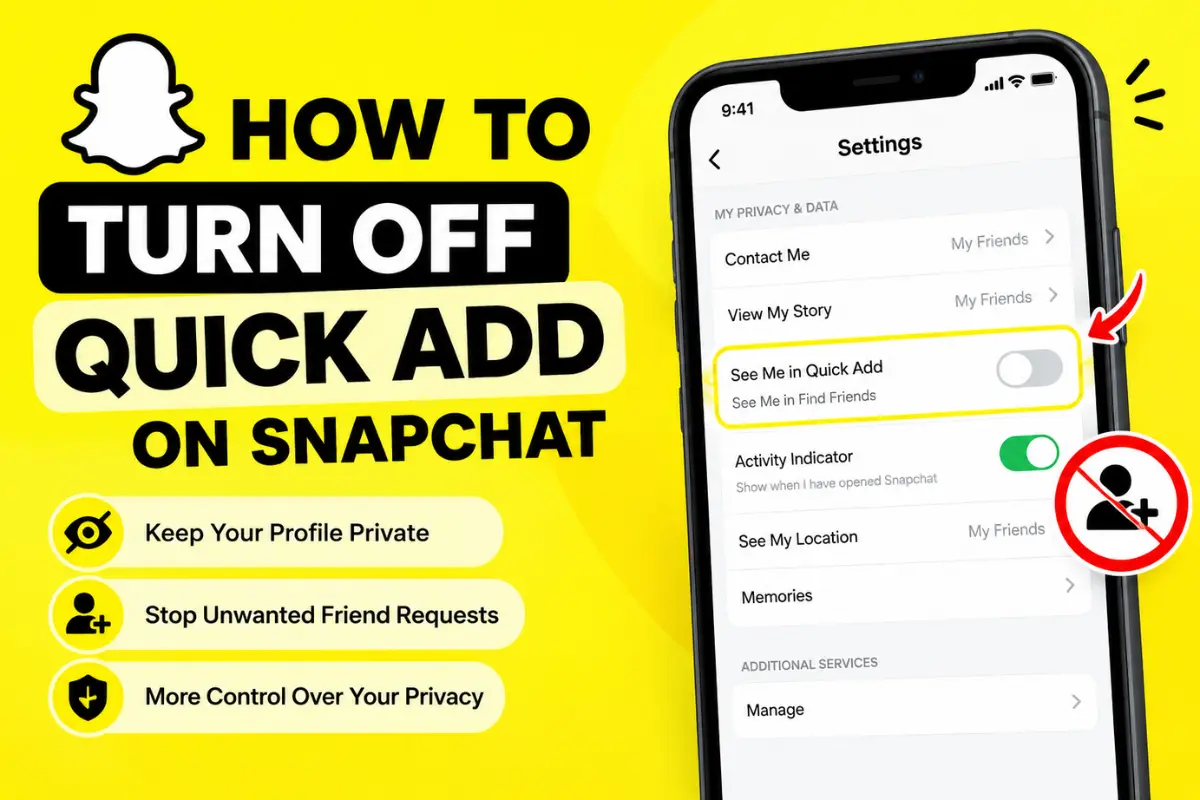
How to Turn Off Quick Add on Snapchat?
Snapchat makes it easy to connect with new people through its friend recommendation feature, Quick Add. However, not everyone wants their account to appear in suggestions or receive friend requests from people they do not know.
If you want more privacy, you can adjust your Snapchat settings to control how other people discover your account. Although Snapchat has updated the names and layout of some settings over time, you can generally manage friend suggestions through the app’s privacy controls.
In this guide, you will learn how to turn off Quick Add on Snapchat, stop your account from appearing in friend suggestions, and manage other settings that help protect your privacy.
What Is Quick Add on Snapchat?
Quick Add is Snapchat’s friend recommendation feature. It suggests people you might know so you can add them without searching for their usernames manually.
These suggestions may be based on factors such as mutual friends and other connections on Snapchat. Depending on your settings and app version, you may see Quick Add suggestions in the Add Friends section or elsewhere in the app.
Quick Add can be useful when you want to find classmates, coworkers, or people you already know. However, it may feel uncomfortable if you prefer to keep your account private.
The good news is that Snapchat provides a setting that lets you control whether your profile appears in other people’s Quick Add suggestions.
How to Turn Off Quick Add on Snapchat
Snapchat has used the name Quick Add for its friend recommendation feature, but the related privacy setting may appear as See Me in Find Friends in newer versions.
Follow these steps to turn it off.
Step 1: Open the Snapchat App
Open Snapchat on your Android phone or iPhone and log in to your account if necessary.
Make sure you are using an updated version of the app. The names or positions of certain settings can vary slightly between versions.
Step 2: Go to Your Profile
Tap your Bitmoji or profile icon in the top-left corner of the camera screen.
Your profile page will open, showing your account information, Snapcode, and other account options.
Step 3: Open Settings
Tap the gear icon in the top-right corner to access Snapchat settings.
This section contains the controls for your account, privacy, notifications, and other features.
Step 4: Find the See Me in Find Friends Setting
Look for the privacy-related settings and find See Me in Find Friends. In some versions or help materials, this feature may be referred to as Quick Add.
This setting controls whether Snapchat recommends your account to other users through its friend-discovery feature.
Step 5: Turn the Setting Off
Tap the option to disable it. If Snapchat displays a confirmation message, follow the instructions on the screen.
Once the change takes effect, your account should no longer be recommended through that particular friend-suggestion feature.
If you cannot find the setting, use the Settings search function if available, or check Snapchat’s current Help Center for the latest instructions.
How to Check Whether Quick Add Is Turned Off
After changing your settings, it is worth checking that the change has been saved.
- Open your Snapchat profile.
- Tap the Settings gear.
- Go to My Privacy & Data.
- Look for Who Can See Me in Find Friends.
- Confirm that your account is set not to appear in Find Friends.
Snapchat notes that changes to this setting can take up to 72 hours to take effect. Therefore, your profile may still appear in suggestions for a short time after you turn it off.
What Happens When You Turn Off Quick Add?
Turning off Quick Add, now called Find Friends, limits one way that other people can discover your account.
Here is what you can expect:
- Fewer friend suggestions: Your profile should no longer appear through this recommendation feature once the setting takes effect.
- More control over discoverability: You can reduce the chances of being recommended to people you do not know.
- You can still add friends: You can continue searching for usernames and adding people directly.
- Other discovery methods may remain: People may still find you through other available methods, such as your username or Snapcode.
Turning off Find Friends does not delete your Snapchat account or remove your existing friends.
How to Stop Getting Unwanted Friend Requests
Disabling Find Friends controls whether your profile appears in recommendations, but it does not prevent every possible friend request.
If you are receiving unwanted requests, consider these additional privacy settings.
Limit Who Can Contact You
Open Settings and find the Contact Me option. Choose the available setting that limits direct contact to your friends.
This can help reduce unwanted Snaps, chats, and calls from people you have not added. Keep in mind that group chats may have separate considerations.
Ignore Unwanted Friend Requests
If someone you do not know adds you, open your profile and select Add Friends. In the Added Me section, tap the X next to the request and choose Ignore if that option appears.
This lets you dismiss requests without adding the person to your friend list.
Review Your Contact Syncing Settings
Snapchat may use uploaded contacts to help you find people you know. If you do not want to use this feature, review the contact-related settings in the app and remove previously synced contacts if appropriate.
Simply denying Snapchat access to your phone’s contacts may not delete contact information you uploaded earlier. Check Snapchat’s in-app controls to manage previously shared data.
Why Can’t I Find the Quick Add Setting?
If the Quick Add option is missing from your Snapchat settings, do not worry. Snapchat has changed the name of this feature to Find Friends, so older tutorials may show a different label.
Try these solutions if you cannot locate the setting.
- Update Snapchat: Install the latest version from the Google Play Store or Apple App Store.
- Check the privacy menu: Look under Settings, then My Privacy & Data.
- Search for the new name: Look for “Who Can See Me in Find Friends” instead of Quick Add.
- Wait for the change to apply: Snapchat says the change may take up to 72 hours to take effect.
- Check the official Help Center: If your settings look different, Snapchat’s instructions can help you find the current option.
Remember that the exact menu layout can differ between devices and app versions.
Latest Snapchat Updates: Quick Add Is Now Find Friends
One important update is that Snapchat has officially renamed Quick Add to Find Friends. The feature still helps users discover people they may know, but the new name better describes its purpose.
Snapchat says its recommendations can consider factors such as existing friends, age, location, followers, and account behavior. The platform also has additional safeguards designed to make it harder for teenagers to connect with strangers.
Users can turn off their appearance in Find Friends through their privacy settings. Snapchat also notes that some safety-related changes may affect how the feature appears in different regions.
For this reason, it is better to follow the current settings in your own app instead of relying on an older guide that only mentions Quick Add.
Frequently Asked Questions
Can I completely disable Quick Add on Snapchat?
You can turn off the setting that allows your account to appear in Find Friends recommendations. However, this does not necessarily prevent people from discovering you through every other method.
Will my friends know if I turn off Quick Add?
Snapchat’s setting controls your appearance in friend recommendations. It is not designed as a notification to your friends, so you do not need to announce the change.
Can I still add people after turning off Quick Add?
Yes. You can still search for a person’s username, use their Snapcode, or use other available friend-adding methods.
Does turning off Quick Add remove my existing friends?
No. Disabling Find Friends does not automatically remove people from your existing friend list.
Does turning off Quick Add stop all friend requests?
No. It limits your visibility through one recommendation feature, but people may still find your account through other methods. Review your contact and communication settings for additional privacy.
Final Thoughts
Learning how to turn off Quick Add on Snapchat is a simple way to manage who can discover your profile. Open your profile settings, navigate to My Privacy & Data, and look for Who Can See Me in Find Friends.
Remember that Snapchat now uses the name Find Friends for its former Quick Add feature. After disabling the setting, allow up to 72 hours for the change to take effect.
For better privacy, you can also limit who contacts you, ignore unwanted requests, and review your synced contacts. These steps give you more control over your Snapchat experience without deleting your account or losing your existing friends.