
How to Clear Cache on Snapchat (iPhone and Android Guide)
Snapchat can take up a lot of storage space over time. If you regularly send Snaps, watch Stories, use filters, or chat with friends, the app may store temporary files that help content load faster. These files are known as cache data.
When Snapchat starts running slowly, taking up too much space, or having trouble loading content, clearing its cache can be a useful first step.
The good news is that clearing your Snapchat cache does not delete your saved Memories, Snaps, or Chats, according to Snapchat Support. The steps are slightly different on iPhone and Android, but you can complete the process directly inside the app.
In this guide, you will learn how to clear cache on Snapchat, what happens after clearing it, and how to troubleshoot common problems safely.
What Is Snapchat Cache?
Snapchat cache is temporary data that the app stores to help certain features work faster. For example, it may keep information related to Lenses, Stories, and other content you have recently used.
This means Snapchat does not need to download everything from scratch whenever you open the app.
However, cached files can accumulate over time. If your phone is running low on storage or Snapchat is experiencing a technical issue, clearing the cache may help.
You do not need to clear your cache every day. It is generally more useful when you are troubleshooting a problem or trying to free up some space.
How to Clear Cache on Snapchat on iPhone
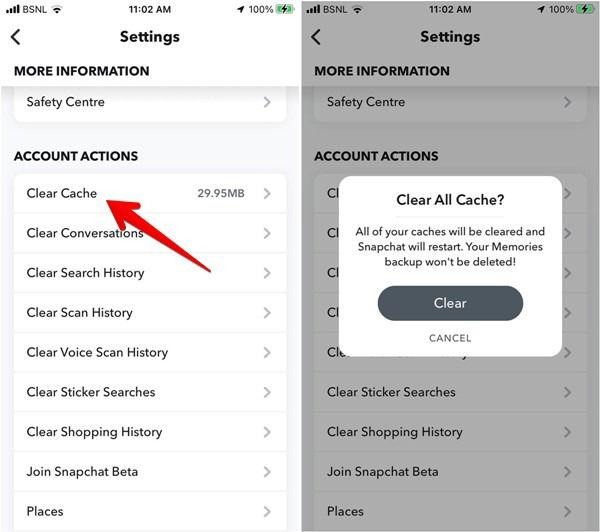
If you use an iPhone, you can clear the cache through Snapchat’s settings without deleting the app.
Follow these steps:
Step 1: Open Snapchat
Launch Snapchat on your iPhone and tap your profile or Bitmoji icon in the top-left corner of the camera screen.
Step 2: Open Settings
Tap the gear icon in the top-right corner to access your account settings.
Step 3: Find My Privacy & Data
Scroll down to the App & Privacy section and select My Privacy & Data.
Step 4: Select Clear Cache
Under Manage My Data, look for the Clear Cache option and tap it.
Step 5: Confirm Your Choice
Tap Clear when Snapchat asks you to confirm. Wait for the process to finish before returning to the camera screen.
Your Snapchat cache should now be cleared. You can continue using the app normally.
Keep in mind that Snapchat occasionally changes its settings layout. If you cannot find the option immediately, check the latest version of the app.
How to Clear Cache on Snapchat on Android
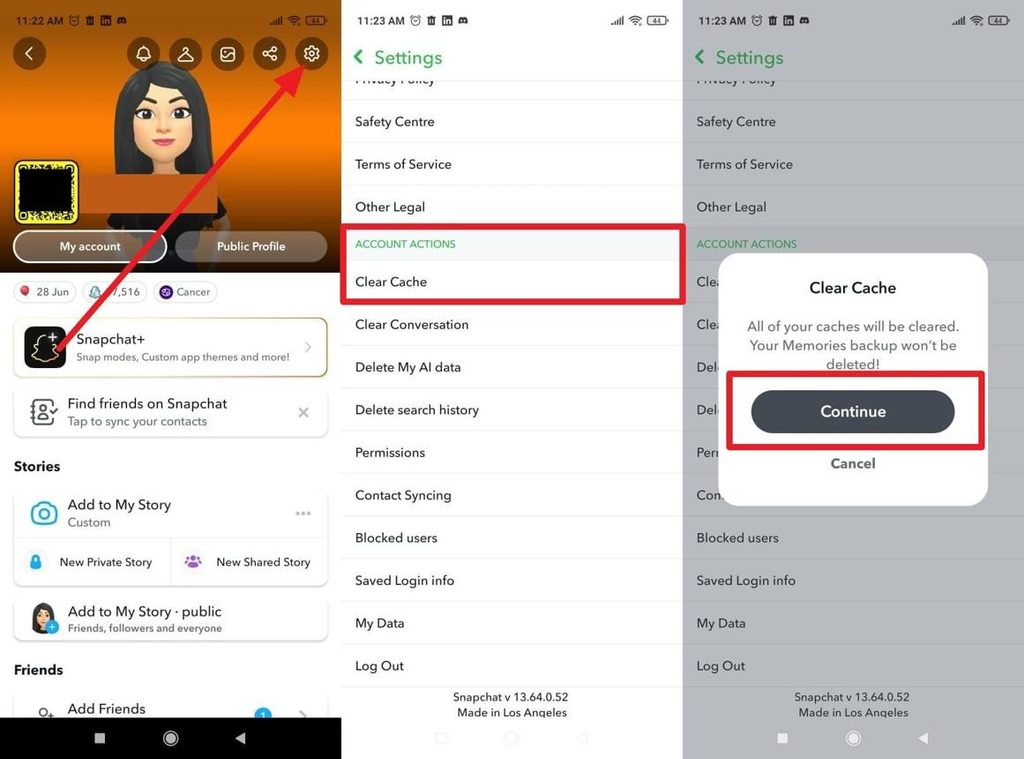
The process on Android is similar to the iPhone method, although the menu names may vary slightly depending on your app version.
Step 1: Open Your Snapchat Profile
Open Snapchat and tap your Bitmoji or profile icon in the top-left corner.
Step 2: Go to Settings
Tap the gear icon to open Settings.
Step 3: Open My Privacy & Data
Scroll to App & Privacy and tap My Privacy & Data.
Step 4: Find the Clear Cache Option
Under Manage My Data, tap Clear Data if that option appears, then select Clear Cache.
On some versions, Clear Cache may appear directly in the settings menu.
Step 5: Confirm and Wait
Tap Clear or Continue, depending on the version of Snapchat you are using.
Once the process finishes, return to the camera screen and check whether the problem has improved. Snapchat confirms that clearing the cache does not delete your saved Memories, Snaps, or Chats.
What Happens When You Clear Snapchat Cache?
Clearing the cache removes temporary files stored by Snapchat. It does not reset your entire account or erase your saved conversations.
Here is what you should know before clearing it:
- Your Memories stay saved: Clearing the cache is not the same as deleting your saved photos and videos.
- Your Chats remain: Your conversations are not deleted by this action.
- Your Snaps remain: Clearing the cache does not delete your saved Snaps.
- Some content may load more slowly at first: Snapchat may need to download certain temporary files again.
- Storage space may become available: The amount depends on how much cached data the app has stored.
These are the expected effects of clearing the cache. If you are troubleshooting a problem, you may need to restart Snapchat or your phone afterward.
Why Should You Clear Your Snapchat Cache?
There are several reasons to clear Snapchat’s cache, especially if you use the app regularly.
1. Snapchat Is Running Slowly
If screens take too long to load or the app feels sluggish, clearing temporary data may help.
However, slow performance can also result from an outdated app, a weak internet connection, or limited phone storage.
2. Snapchat Is Taking Up Too Much Space
Snapchat may accumulate temporary files as you use its different features. Clearing the cache can help free up some storage without requiring you to uninstall the app.
3. Stories or Snaps Are Not Loading
If Stories, Snaps, or other content are stuck loading, clearing the cache is one troubleshooting step recommended by Snapchat Support.
4. Certain Features Are Not Working Properly
If a Lens, filter, or another feature behaves unexpectedly, clearing the cache may help. If it does not, try updating Snapchat and restarting your device.
What to Do If Clearing the Cache Does Not Work
Clearing the cache does not fix every Snapchat problem. If the issue continues, try these steps in order.
Update Snapchat. Open the Google Play Store or Apple App Store and check whether an update is available.
Check your internet connection. Switch between Wi-Fi and mobile data to see whether the problem is related to your connection.
Restart your phone. Snapchat Support recommends turning your device off completely for one minute before turning it back on when troubleshooting certain loading issues.
Check your phone’s storage. If your device is almost full, remove unnecessary downloads or other files you no longer need.
Contact Snapchat Support. If the problem persists, visit the official Snapchat Support website for further assistance.
Important Note About Snapchat Memories
If you are clearing the cache because your Memories appear to be missing, first update Snapchat and follow the official troubleshooting steps.
Make sure your Memories are fully backed up before logging out, switching devices, or uninstalling Snapchat. Snapchat warns that lost or deleted Memories may not be recoverable.
Latest Snapchat Updates to Know
Snapchat’s official support guidance continues to recommend clearing the cache as a troubleshooting method for issues such as Snaps failing to load and missing Memories.
Another important development concerns Memories storage. Snapchat has announced storage plans for users whose saved Memories exceed the complimentary storage allowance. According to its current support information, up to 5 GB of Memories storage is included for free, with paid options available for eligible users. Snapchat says some older Memories may be archived starting in January 2027 under the announced storage changes.
This is separate from clearing your cache. Do not confuse temporary cache files with your saved Memories or cloud storage allowance. Clearing the cache is not a way to increase your Memories storage plan.
Final Thoughts
Learning how to clear cache on Snapchat is simple once you know where to find the setting. Open your profile, go to Settings, find My Privacy & Data, and select Clear Cache. On some Android versions, you may need to open Clear Data first.
Clearing the cache can help free up storage and troubleshoot loading problems without deleting your saved Snaps, Memories, or Chats. If Snapchat continues to malfunction afterward, update the app, check your connection, and restart your phone.